
How to Use TradingView: A Beginner Tutorial in 11 Steps


Contents
- How to use TradingView in 30 seconds
- Before you start: account, app and plan
- Step 1: Open Supercharts and learn the four areas
- Step 2: Find a symbol and check the exchange
- Step 3: Choose the timeframe and the chart type
- Step 4: Draw your first levels
- Step 5: Add your first indicators
- Step 6: Switch to log scale for long-term charts
- Step 7: Compare two symbols on one chart
- Step 8: Build a watchlist
- Step 9: Set your first alert
- Step 10: Use several charts and save your layout
- Step 11: How to trade on TradingView
- Keyboard shortcuts worth learning first
- Five beginner mistakes I see again and again
- Where to go next
- FAQ: how to use TradingView
- About the author
TradingView looks complicated on the first day, but you only need eleven steps to use it well. This tutorial walks you through them in the order a new user needs them: from opening the chart to your first alert and connecting a free paper trading account.
I have used TradingView since August 2017, today on the Ultimate plan, and I make all charts for our forecasts with it. For this guide, I went through steps 1 to 10 again on October 22, 2026 in the TradingView desktop app and took all screenshots there. For step 11, I opened the broker list but did not connect an account or place an order. The plan limits come from TradingView’s own pricing page and help center. What the plans cost and whether a paid plan is worth it is in our TradingView review. This article follows our editorial policy.
How to use TradingView in 30 seconds
The key points as of October 22, 2026:
- Start for free: a free Basic account covers the core steps of this guide. Only several charts side by side and alerts on drawings need a paid plan. You can use TradingView in the browser, in the desktop app or on your phone.
- The chart is called Supercharts: symbol and timeframe at the top, drawing tools on the left, watchlist and alerts on the right, trading panel and strategy report at the bottom.
- Find a market: click the symbol name or simply start typing on the chart. Check the exchange next to each result.
- Analyze: draw levels, add up to 2 indicators on Basic, switch to log scale for long-term charts and compare symbols in percent.
- Stay informed: a watchlist collects your markets, an alert tells you when a level is reached. Basic allows 3 price alerts.
- Trade: practice with the free paper trading account first. Real orders need a connected broker.
Before you start: account, app and plan
You need a free account to save anything. Without one, you can open a chart, but your drawings, watchlists and alerts are not kept. The sign-up, the download of the desktop app and the language setting are covered step by step in our TradingView review.
The free Basic plan is enough to learn the platform. It allows 1 chart per tab, 2 indicators per chart and 3 price alerts, and it shows ads. Paid plans raise these limits, from Essential with 2 charts and 5 indicators to Ultimate with 16 charts and 50 indicators (TradingView pricing page, checked October 21, 2026). Start with Basic and upgrade only when you hit a limit you feel every day.
The browser version and the desktop app work the same way. All steps below apply to both. The mobile app has the same chart, but some panels, such as the screener, are missing there.
Step 1: Open Supercharts and learn the four areas
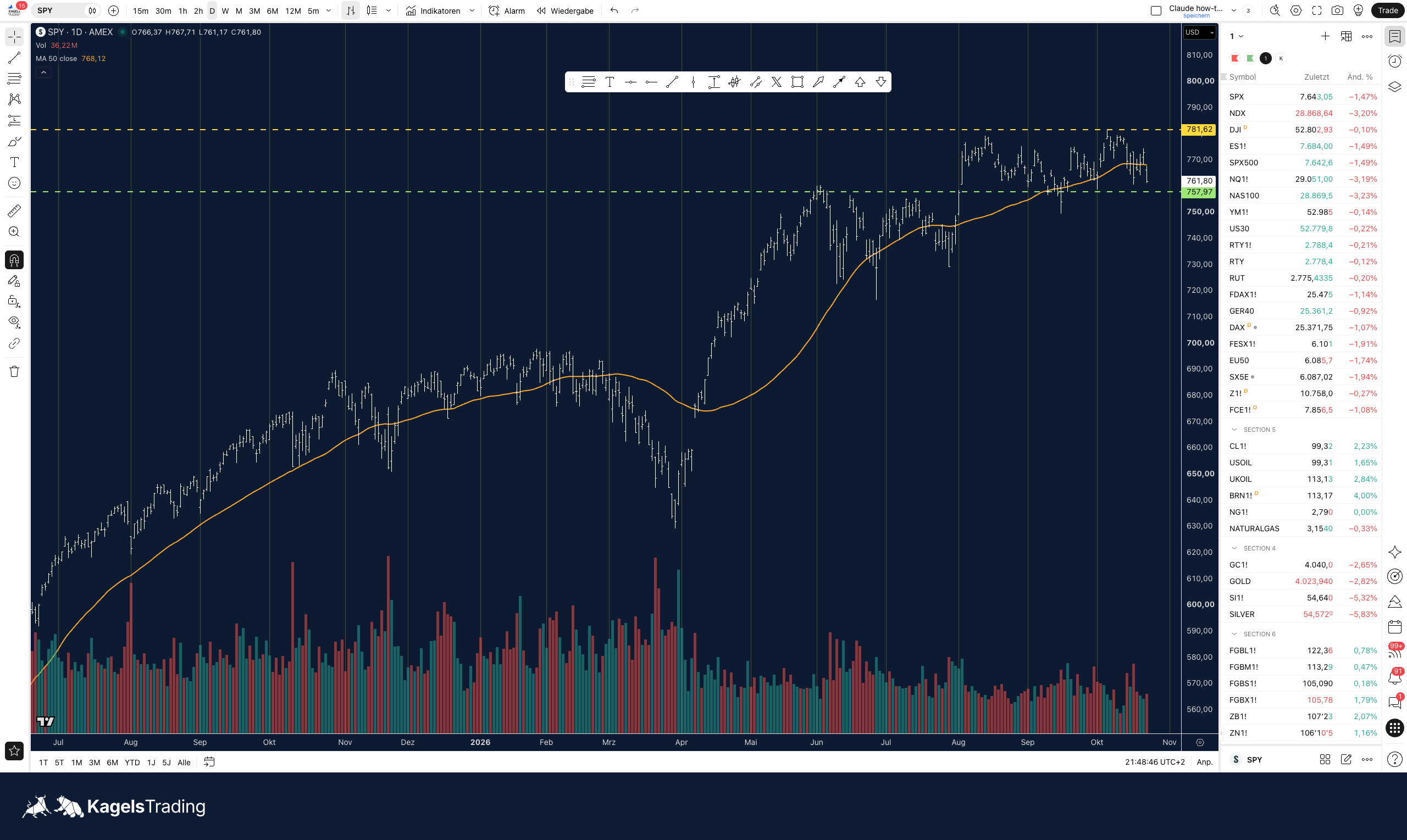
TradingView calls its main chart Supercharts, and it always has the same four areas. In the browser you open it with Products, then Supercharts; the desktop app starts with it.
 Click to enlarge
- Top toolbar Symbol, timeframe, chart type, indicators, alerts and replay.
- Drawing tools Lines, Fibonacci, patterns, measuring tools and text, grouped in the left toolbar.
- Watchlist The right sidebar shows the watchlist; the icons on the far right open alerts, news and the calendar.
Source: Screenshot: Kagels Trading; interface per TradingView help center.
- Top toolbar: symbol, timeframe, chart type, indicators, alerts and the layout menu.
- Left toolbar: the drawing tools, grouped by type: lines, Fibonacci, patterns, measuring tools and text.
- Right sidebar: the watchlist, alerts, news and the calendar. Each icon opens its own panel. Since August 2025, the Pine Editor also opens on the right side by default (release notes).
- Bottom panel: the strategy report and the trading panel.
Once you know these four areas, you can find everything else on your own. The rest of this guide goes through them from top to bottom.
Step 2: Find a symbol and check the exchange
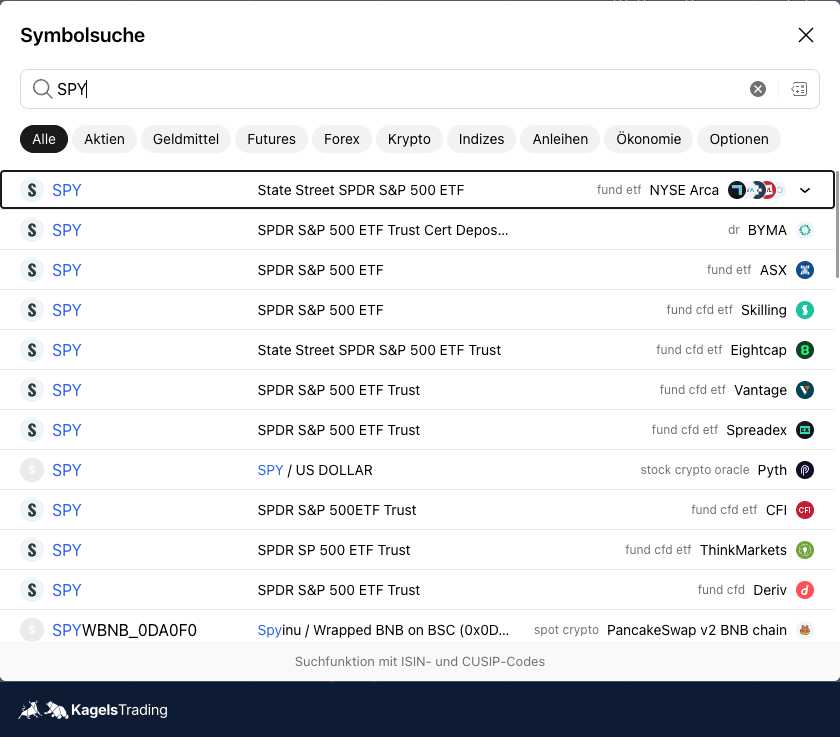
Click the symbol name in the top left corner, or just start typing while the chart is active. The symbol search opens and suggests stocks, ETFs, futures, forex pairs and crypto. Filters at the top narrow the list, for example to stocks or futures.
 Click to enlarge
Source: Screenshot: Kagels Trading, TradingView desktop app.
Look at the exchange next to every result before you click. The same name often exists several times: our search for SPY showed the ETF on NYSE Arca first, then on the Australian exchange ASX, on Argentina’s BYMA and as a CFD at several brokers. Bitcoin even has a different price on every crypto exchange. For US stocks, the primary listing exchange is the safe choice. A symbol with an exchange prefix, such as AMEX:SPY or CME_MINI:ES1!, always opens exactly that market.
Futures carry a “1!” at the end for the front month. ES1! is the nearest E-mini S&P 500 contract, and TradingView switches to the next contract by itself at the roll. This is handy for analysis; for orders, your broker shows the exact contract month.
Step 3: Choose the timeframe and the chart type
The timeframe sets what one candle or bar stands for: one minute, one hour, one day or one week. You choose it in the top toolbar, or you type a number on the chart and press Enter: 60 opens the 1-hour chart, 1D the daily chart. Favorites marked with a star stay visible in the toolbar.
Start with the daily chart, even if you want to trade shorter timeframes later. It shows the big levels that also matter intraday, and it filters out a lot of noise. I check the weekly and the daily chart first and only then go down to the hourly chart.
The chart type sits right next to the timeframe. For beginners, candles or bars are the right choice, because they show open, high, low and close of every period. Our forecast charts use white OHLC bars on a dark background. Special types such as Heikin Ashi or Renko change the prices they display, so do not use them to read exact levels. The full list of chart types is in our review.
Step 4: Draw your first levels
A horizontal line at an important price is the most useful drawing for every beginner. Either select it in the left toolbar and click on the price, or move the cursor to the price and press Alt + H (Option + H on a Mac). The line stays on the chart for this symbol, also when you change the timeframe.
Mark the levels that every trader can see. Good starting points are the previous day’s high and low, the high and low of the week and round numbers. Draw the line at the exact price and not “about there”: if you later set a price alert at that level, you need the same number.
Three more tools cover most of daily use. The trend line (Alt + T) connects two highs or two lows. The rectangle marks a zone. The long position and short position tools show entry, stop and target with the risk-reward ratio, which helps you plan a trade before you place it. How to draw Fibonacci levels is explained in our guide to the Fibonacci retracement.
Keep the chart clean. Delete old drawings with a right click, or hide all of them with the eye icon in the left toolbar. If you see twenty lines, you no longer see the one that matters.
Step 5: Add your first indicators
Click “Indicators” in the top toolbar (or press the / key), type the name and click the result. The indicator appears on the price chart, like a moving average, or in its own panel below, like the RSI. A double click on the indicator name opens its settings.
On the Basic plan, you can use two indicators per chart at the same time. That is enough for a start: for example volume and one moving average. Before you add more, ask what each one tells you that the price does not already show. Our guides to the RSI, the MACD and moving averages explain the settings that are worth knowing.
The list mixes built-in indicators and community scripts. Built-in ones come from TradingView; community scripts show the author’s name. Check how many people use a script and read its description before you trust it. If you want to build your own, our Pine Script guide shows the first steps.
Step 6: Switch to log scale for long-term charts
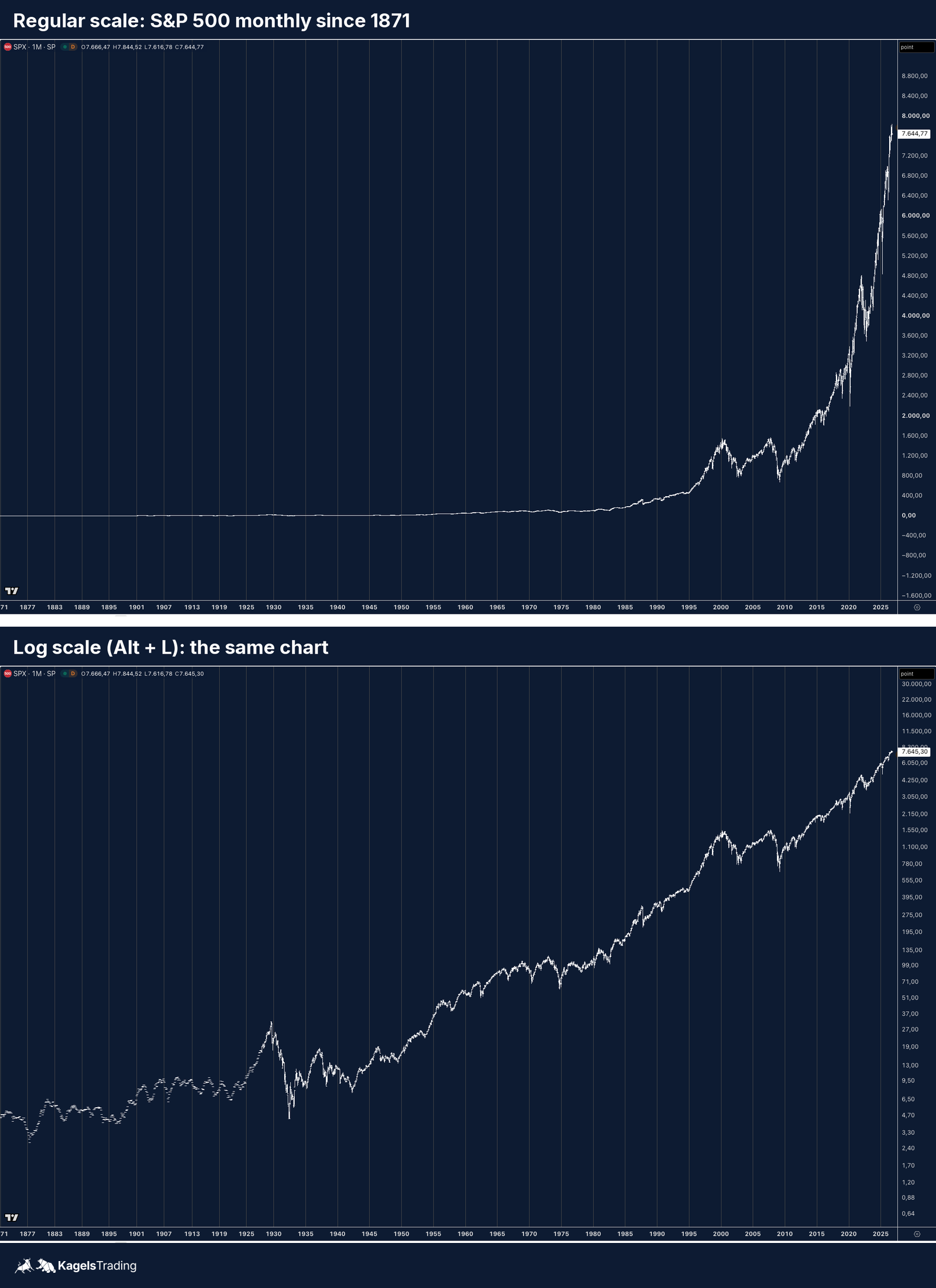
On a regular scale, every dollar has the same height; on a log scale, every percent has the same height. That matters as soon as a chart covers a big price range. A rise from 100 to 200 and a rise from 1,000 to 2,000 are both plus 100 percent, and only the log scale shows them at the same size.
 Click to enlarge
Source: Screenshot: Kagels Trading; scale settings per TradingView help center.
Switch with Alt + L, or click the small “L” at the bottom right below the price scale. Press it again to return to the regular scale. TradingView’s help center notes that turning log scale off always returns to the regular scale, even if you had percent or indexed to 100 before.
My rule: weekly and monthly charts in log scale, intraday charts in regular scale. On a chart of a few days, the difference is too small to matter. Check your trend lines after switching, because a straight line on one scale is not straight on the other.
Step 7: Compare two symbols on one chart
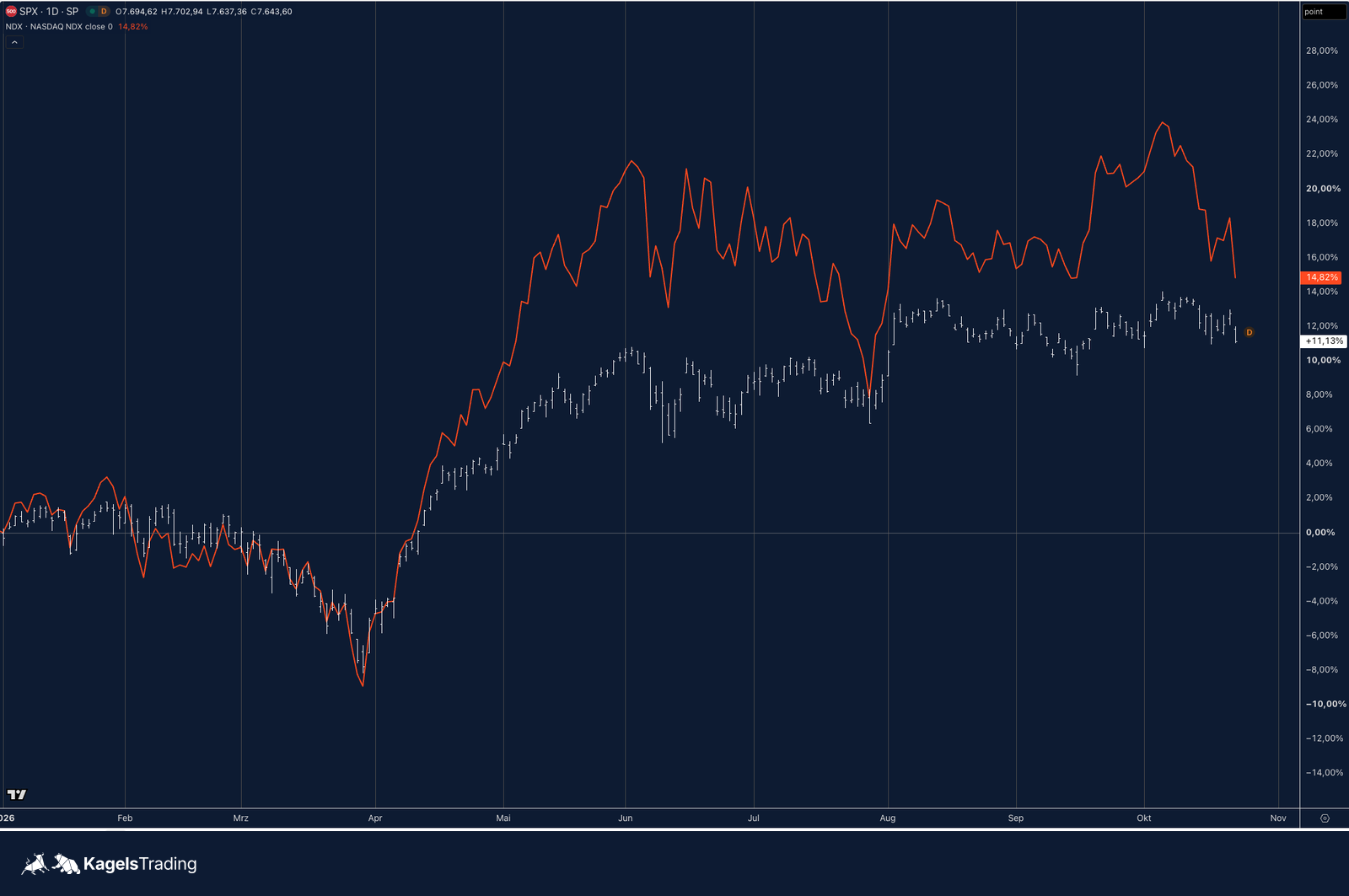
Click the plus sign next to the symbol name (“Compare or Add symbol”) and choose a second symbol. TradingView then switches the price scale to percent, and both lines start at 0% on the first visible bar (help center).
 Click to enlarge
Source: Screenshot: Kagels Trading; Compare per TradingView help center.
Comparing in percent answers one simple question: which market was stronger over this period? A typical example is a stock against its index, or the Nasdaq 100 against the S&P 500. Scroll or zoom, and the starting point moves with the visible range, so the percentages change too. Always say from which date you are comparing. In our example, measured from the first visible bar of 2026, the S&P 500 was up 11.13% on October 22 and the Nasdaq 100 14.82%.
Step 8: Build a watchlist
The watchlist in the right sidebar collects the markets you look at every day. Click the plus sign, type a symbol and press Enter. Alt + W adds the symbol of the active chart to the list. You can sort the list, add sections with a title such as “Indices” or “Metals”, and flag symbols with colors.
On Basic, one watchlist holds up to 30 symbols; paid plans allow several lists with up to 1,000 symbols each. Thirty is more than enough. A list of five to ten markets that you really check every day teaches you more than a list of a hundred names you only scroll past.
A click on a symbol in the watchlist loads it into the active chart, with your drawings for that symbol. That makes the watchlist the fastest way to go through your morning routine: one click per market, one look at the levels, done.
Step 9: Set your first alert
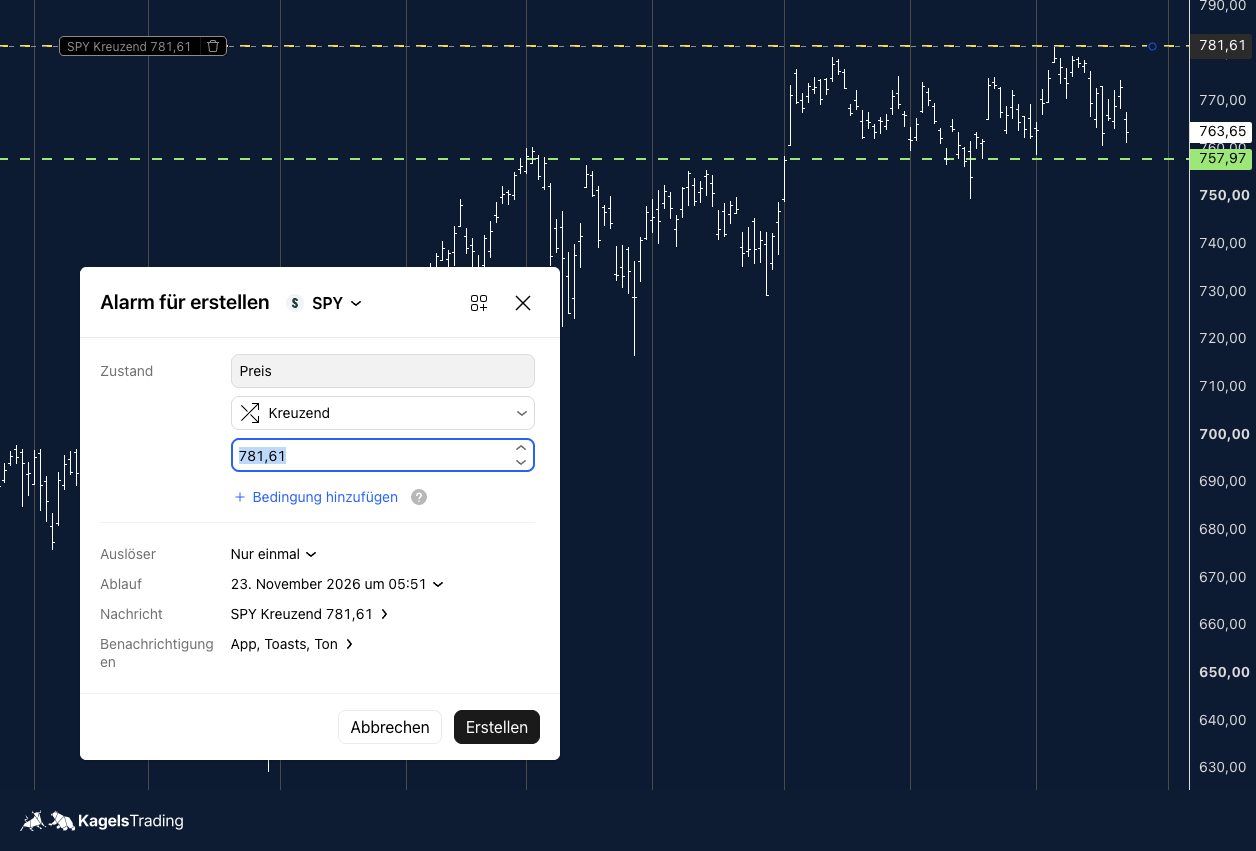
An alert lets TradingView watch the price for you. The simplest one is a price alert: click Alert in the top toolbar, or press Alt + A with the cursor at the price you want. In the dialog, choose Price and Crossing, type the level and choose how often the alert triggers.
 Click to enlarge
Source: Screenshot: Kagels Trading; alerts per TradingView help center.
Check two settings before you click Create. The expiration: on Basic, an alert runs for up to one month, then it stops (help center). And the notifications: a pop-up only helps if TradingView is open, so turn on the app push or email if you are away from the screen.
Basic allows 3 active price alerts, Essential 20 and Plus 100. Use the three for the levels that would really change your plan, not for every line on the chart. The finished alert sits on the chart as a dashed line with a label, and you can move it with the mouse.
Alerts on drawings and indicators need a paid plan. TradingView counts an alert on a trend line or an indicator as a technical alert, and the Basic plan includes none; Essential has 20. On Basic, type the price of your line into a price alert instead.
Step 10: Use several charts and save your layout
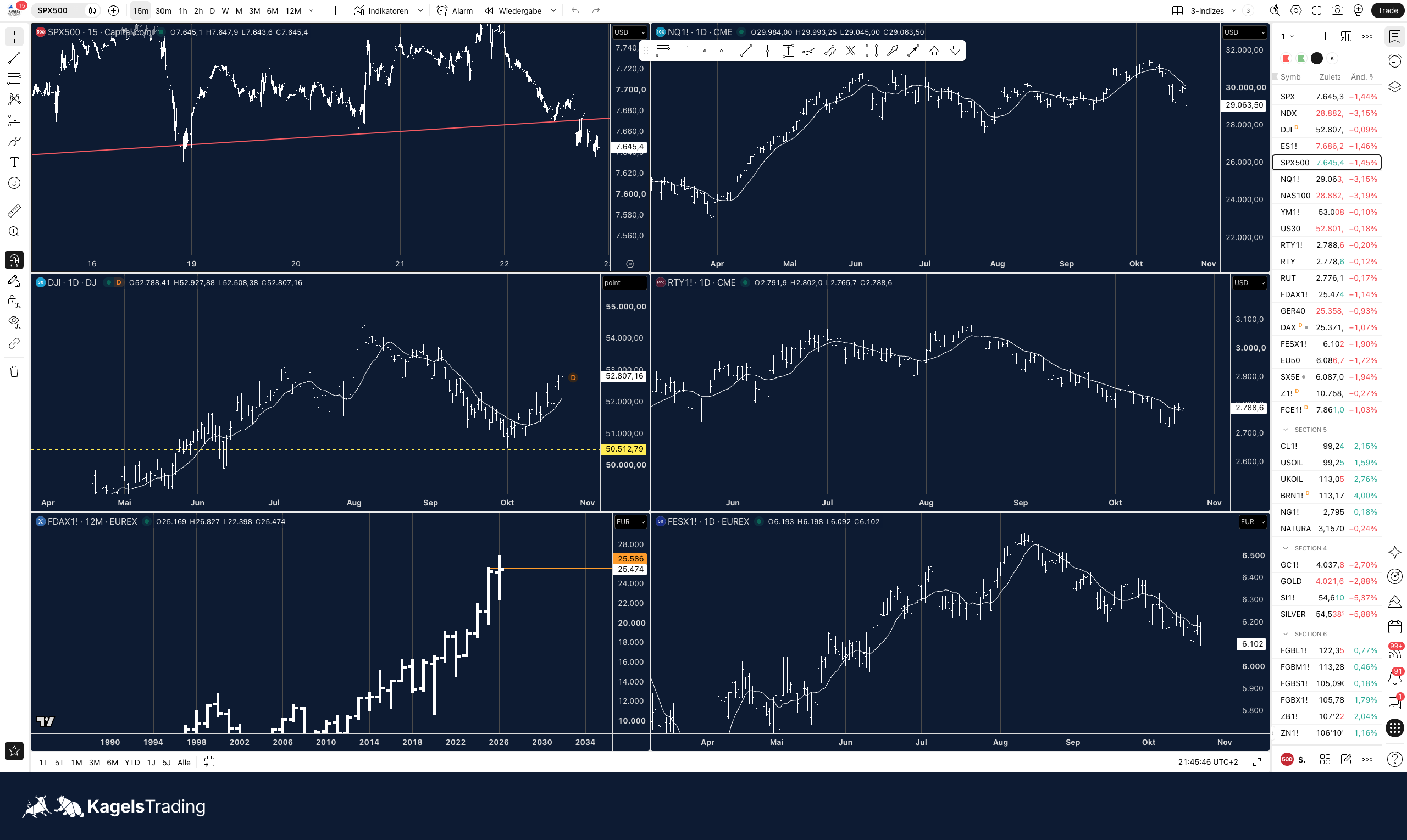
A layout is your saved workspace: charts, their settings, drawings and indicators. Watchlists and alerts are not part of it. TradingView saves the layout automatically when autosave is on; a blue “Save” note under the layout name means you have changes that are not saved yet (help center).
Several charts side by side need a paid plan: 2 per tab on Essential, 4 on Plus, 8 on Premium and 16 on Ultimate. You choose the grid with the layout icon in the top toolbar. A typical setup for one market is the weekly, daily and hourly chart next to each other. With sync switched on, the charts share the symbol, the crosshair or the time range.
 Click to enlarge
Source: Screenshot: Kagels Trading; layouts per TradingView help center.
Decide where a drawing should appear. By default it stays on its chart. TradingView can also show it on all charts of the same symbol in the layout, or globally in all layouts. A horizontal line drawn on the daily chart then also appears on the hourly chart, which is what you usually want for key levels.
Be careful with deleting layouts. According to TradingView, a deleted layout cannot be restored. If you want to try something new, copy the layout first with “Make a copy” in the layout menu.
Step 11: How to trade on TradingView
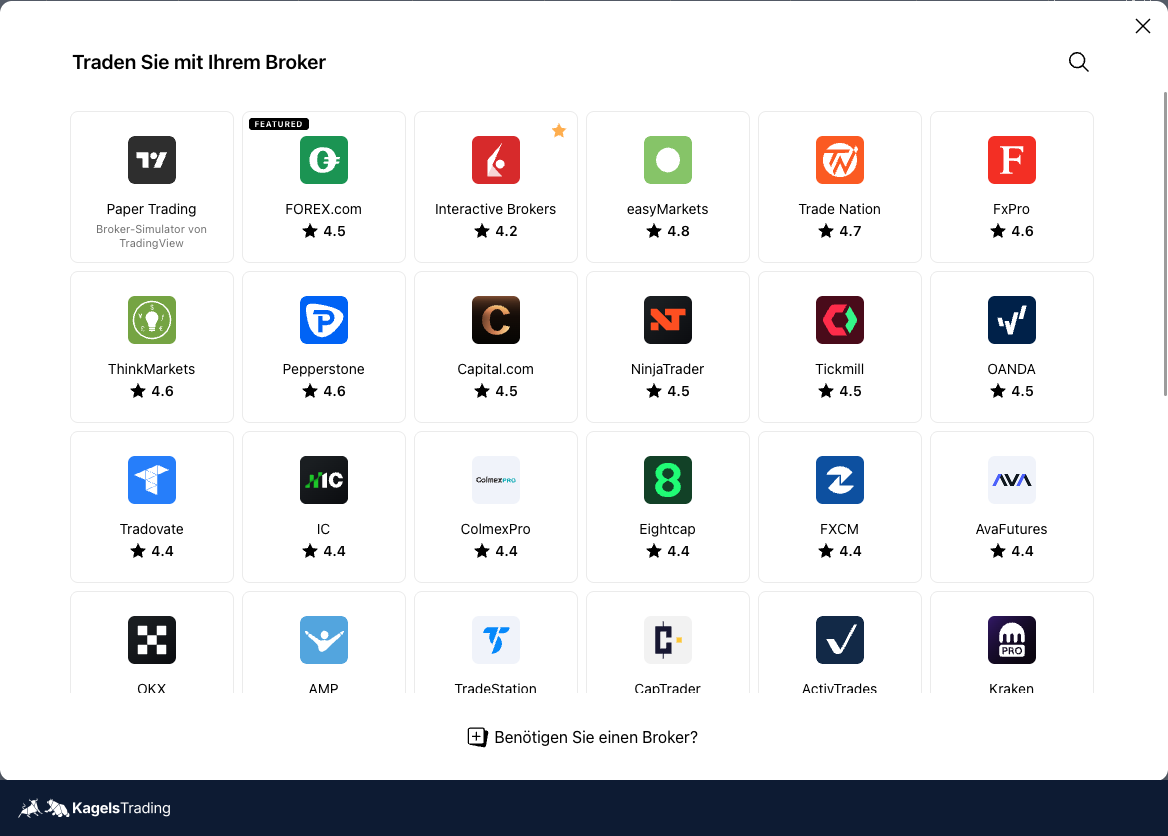
TradingView is a charting platform, not a broker. To place real orders from the chart, you connect an account with a supported broker in the trading panel at the bottom. Which US brokers work and what to check first is in our guide to TradingView brokers.
Start with the free paper trading account, not with real money. It uses the same order ticket and the same chart, with virtual money. You connect it with Trade, then Paper Trading, then Connect. The setup and its limits are in our guide to paper trading on TradingView.
 Click to enlarge
Source: Screenshot: Kagels Trading; trading per TradingView help center.
Four order types cover almost everything a beginner needs. A market order fills right away, but the price can differ from the one you saw. A limit order fills only at your price or better and may not fill at all. A stop order becomes a market order when a price is reached, and a stop-limit order becomes a limit order (help center). The exact list depends on your broker.
On the chart, you can drag pending orders to a new price. Take-profit and stop-loss appear as their own lines, and you move them with the mouse. TradingView projects limit, stop and stop-limit orders on the chart this way; a market order cannot be placed by dragging (help center). Keep one-click trading off while you learn: when it is on, TradingView sends orders without a confirmation preview.
Keyboard shortcuts worth learning first
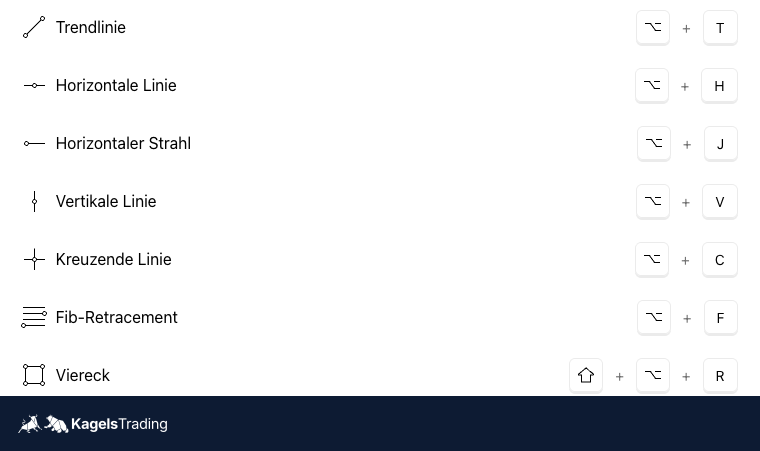
Ten shortcuts save you most of the clicks in daily use. Press Ctrl + / (Cmd + / on a Mac) to open TradingView’s full list. On a Mac, use Option instead of Alt.
 Click to enlarge
Source: Screenshot: Kagels Trading; shortcut list per TradingView blog.
| Shortcut (Windows) | What it does |
|---|---|
| Any letter on the chart | Opens the symbol search |
| A number on the chart | Changes the timeframe (60 = 1 hour) |
| / | Opens the indicators |
| Alt + H | Horizontal line |
| Alt + T | Trend line |
| Alt + F | Fib retracement |
| Alt + A | New alert at the cursor price |
| Alt + L | Log scale on and off |
| Alt + R | Resets the chart view |
| Ctrl + S | Saves the layout |
Learn three of them this week, not all ten. I use Alt + H, Alt + A and typing on the chart dozens of times a day; the rest came over time.
Five beginner mistakes I see again and again
Most problems with TradingView are not technical, they come from habits. These five cost new users the most time:
- Wrong exchange: a chart of a thinly traded venue or a different crypto exchange, with prices that do not match your broker.
- Too many indicators: a chart full of lines that contradict each other. Two are enough to start.
- Forgotten expiration: an alert that silently expired after a month on Basic.
- Regular scale on long-term charts: old moves look tiny and recent ones huge. Use log scale for weekly and monthly charts.
- Real money too early: a broker connected on day one. Practice the order ticket on the paper account first.
Where to go next
Once the eleven steps feel normal, pick the next guide by the task you have. To filter stocks, read our guide to the TradingView stock screener. To test a strategy on past data, use Bar Replay and the strategy report. To let AI draw levels or write code, see our TradingView AI Copilot review. All guides are on the TradingView topic page.
TradingView is a tool for analysis, not a trading system. It shows you prices, levels and signals, but the decision stays yours. This guide explains the software and is not investment advice.
FAQ: how to use TradingView
Can I use TradingView for free?
Yes, the core steps of this guide work on the free Basic plan. It allows 1 chart per tab, 2 indicators per chart, 3 price alerts and one watchlist with 30 symbols. Several charts side by side and alerts on drawings need a paid plan, and you need a free account to save your work.
How do I trade on TradingView?
You connect a supported broker in the trading panel at the bottom of the chart. Then you place orders through the order ticket or by dragging them on the chart. To practice, connect the free paper trading account instead of a broker.
Can you buy stocks directly on TradingView?
Not from TradingView itself, because TradingView is not a broker. The order goes to the broker you connected, and that broker holds your stocks and your money. Without a connected broker, you can only trade on the paper account.
How do I change the timeframe on TradingView?
Click the timeframe in the top toolbar, or type a number on the chart and press Enter. 60 gives the 1-hour chart, 240 the 4-hour chart, and 1D or 1W the daily or weekly chart.
How do I save my chart on TradingView?
With autosave on, TradingView saves your layout by itself. Otherwise press Ctrl + S (Cmd + S on a Mac) or use the layout menu. Basic users can keep one saved layout; paid plans allow more.
Why does my TradingView chart look different from my broker’s?
The chart usually shows a different exchange or data feed than your broker. Check the exchange in the symbol search, the session settings and whether the data is real-time or delayed. For forex and crypto, every provider has its own prices.
Does TradingView work on a phone?
Yes, the iOS and Android apps show the same charts, drawings, watchlists and alerts. Some tools, such as the stock screener, are not in the apps and only work in the mobile browser.
More TradingView guides
- Choose a plan
TradingView Review 2026: Plans, Pricing and Is It Worth It?
Prices of all plans in US dollars, real-time data costs, Black Friday and whether it is worth it.
- Save on a plan
TradingView Black Friday 2026: Dates, Deals and Best Plan
Expected 2026 timing, verified past deals and what to check before buying a plan.
- Practice without risk
TradingView Paper Trading: Setup, Limits and Tips (2026)
Set up the free paper trading account, place your first orders and learn where the simulation falls short.
- Compare platforms
TradingView Alternatives 2026: 7 Platforms Tested
Seven platforms compared, with a decision aid for when switching makes sense.
- Connect a broker
Best Brokers for TradingView 2026: A Guide for US Traders
Which US brokers work with TradingView and what to check before you connect one.
- Connect an AI assistant
TradingView MCP and API: What Is Official in 2026
What the official MCP server, webhooks and community MCP servers can do, and why there is no data API.
- Test a strategy
TradingView Backtesting: Test a Strategy Without Real Money
Manual testing with Bar Replay and automatic testing with the strategy report.
- Plan around economic data
Economic Calendar: Key US Dates and the 6 Best Calendars
The key US release dates to the end of 2026, how to read a calendar and six free calendars compared, TradingView first.
- Write an indicator
Pine Script in TradingView: Basics, Editor and Version 6
Pine Script basics, the editor and version 6, with code you can copy.
- Use the AI Copilot
TradingView AI Copilot Review: 7 Tests, Price and Limits
Seven real tasks for the paid AI add-on: what it costs, what it got right and where you must check it.
- Filter stocks with the screener
TradingView Stock Screener: How to Use It and What It Costs
How the stock screener works, what the free plan can do, the Pine Screener and three tested popular screens.
- Read volume inside each bar
TradingView Volume Footprint: Setup, Plans and Limits
Open and set up the volume footprint, which plan includes it and how accurate its buy and sell split is.
- Read the market on a heatmap
Stock Heatmap: How to Read It, TradingView and Finviz
What size, color and grouping mean, the free TradingView heatmap step by step and how it compares with Finviz.