
TradingView Volume Footprint: Setup, Plans and Limits


Contents
- TradingView volume footprint in 30 seconds
- What is the TradingView volume footprint?
- Which TradingView plan includes the volume footprint?
- How to open the volume footprint in TradingView
- How TradingView splits buy and sell volume
- Volume footprint settings: what each one does
- Alerts and Pine Script on the footprint
- TradingView footprint vs ATAS and Bookmap
- Strengths and limits of the TradingView footprint
- Conclusion: a good way to learn footprints, not a full order flow platform
- Frequently asked questions about the TradingView volume footprint
- About the author
TradingView’s volume footprint groups the traded volume of a bar into price rows, but it splits that volume into buying and selling by an estimate, not by the bid and ask. That one sentence decides how far you can trust it. For learning to read a footprint chart, it is a good and convenient tool. For precise order flow work in futures, the dedicated platforms remain a step ahead.
I have paid for TradingView since August 2017 and use the Ultimate plan today. For this guide, I opened the footprint on the E-mini S&P 500 future on October 22, 2026, went through every setting and checked the plan limits against TradingView’s pricing page and help center on the same day. This article follows our editorial policy.
TradingView volume footprint in 30 seconds
The key points as of October 22, 2026:
- What it is: a chart type that opens each bar and shows how much volume traded at every price level inside it, split into buy and sell volume.
- Which plan: only Premium ($69.95 a month) and Ultimate. Essential and Plus have the volume profile, but not the footprint.
- How to open it: chart type menu at the top, then Volume footprint.
- How it splits volume: by the direction of smaller bars inside each bar, not by bid and ask. Recent bars can use finer data than older ones, and the chart repaints by design.
- Best use: learning the layout, delta and imbalances on futures and stocks with real exchange volume.
- Not ideal for: exact aggressor analysis, where ATAS, Bookmap or similar platforms with tick data are stronger.
What is the TradingView volume footprint?
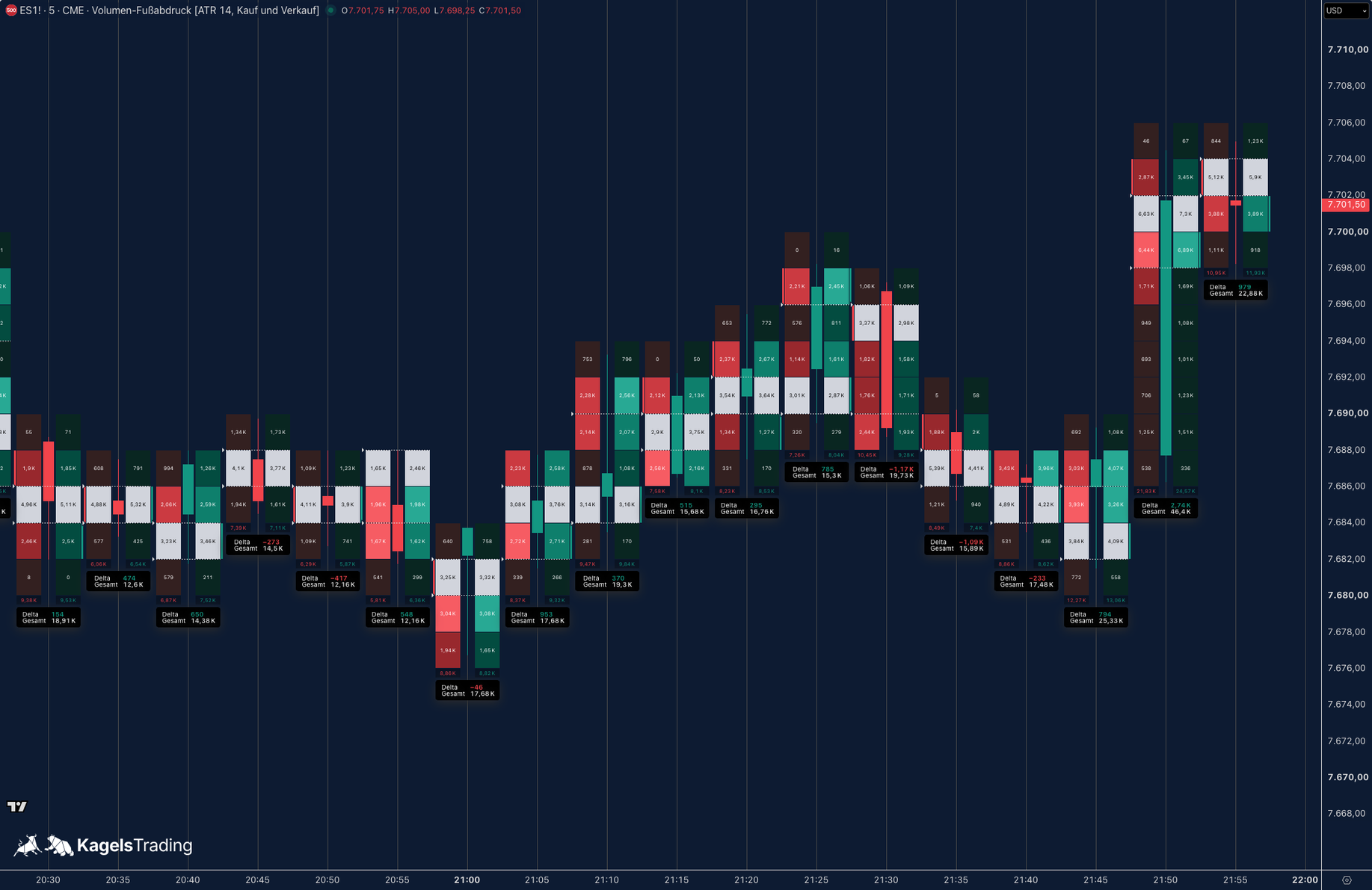
The TradingView volume footprint is a chart type that shows the traded volume at each price inside every bar, split into a buy side and a sell side, with delta, point of control and imbalances.
TradingView added the chart type on May 14, 2024, for Premium and higher plans. According to the launch post, selling volume appears on the left of each bar and buying volume on the right. Below each bar, the chart shows the volume delta and the total volume.
A footprint turns every candle into a small table. Each row is a price range. A normal candlestick tells you where price opened, closed and how far it moved. The footprint adds where the volume sat inside that move and which side, by TradingView’s estimate, was more active. The general idea, and how footprints fit next to the order book and the tape, is explained in our guide to order flow trading.
 Click to enlarge
Source: Screenshot of TradingView Desktop by Kagels Trading.
Which TradingView plan includes the volume footprint?
On TradingView’s pricing page, the volume footprint is ticked only for Premium and Ultimate, as of October 22, 2026. In the plan comparison, the row “Orderflow: Volume footprint” is crossed out for Essential and Plus. The row “Orderflow: Volume profile” is ticked for all four paid plans.
| Plan | Footprint | Profile | Per month |
|---|---|---|---|
| Basic | No | No | $0 |
| Essential | No | Yes | $14.95 |
| Plus | No | Yes | $34.95 |
| Premium | Yes | Yes | $69.95 |
| Ultimate | Yes | Yes | $239.95 |
Paying yearly lowers Premium to $59.95 a month and Ultimate to $199.95 a month. Prices are TradingView’s list prices in US dollars; the TradingView review with all plan costs explains the other differences between the plans. Real-time exchange data is not included. For the E-mini futures, the data coverage page lists CME Group real-time data at 7 a month for non-professionals, in the local currency of the page (as of October 23, 2026). Delayed data is free, and some brokers can pass on real-time data you already pay for.
The jump from Plus to Premium is large, so check what you would actually use. If you want the footprint only to learn how it looks, the 30-day trial of Premium is enough. If you trade from footprints every day, Premium also brings second-based intervals, which matter for the footprint’s precision, as the next section shows.
How to open the volume footprint in TradingView
It takes three steps, and the chart type works like candles or bars. You switch it on and off for each chart, and it is saved with your layout.
- Open a symbol with real exchange volume, for example the E-mini S&P 500 (ES1!), a stock or an ETF.
- Pick an intraday timeframe. Five minutes is a good start; on very short timeframes the bars hold too few rows to read.
- Click the chart type button in the top toolbar and choose Volume footprint.
Zoom in before you judge the chart. At normal zoom, the numbers in the cells are tiny. Drag the time axis or use the zoom until each bar is wide enough to read the volume figures; about 15 to 20 bars on the screen worked well for me.
Pick the market carefully, because the footprint can only split the volume it receives. Futures and stocks deliver exchange volume. Some forex and CFD feeds provide tick volume, the number of price changes, others no usable volume at all, so check the symbol and its data provider. For crypto, you see the volume of a single exchange. Why that matters is covered in detail in our volume profile guide, and the same limits apply to the footprint.
How TradingView splits buy and sell volume
TradingView classifies volume by the direction of smaller bars inside each bar, not by trades at the bid or ask. The help center article on the volume footprint describes the method: it collects the volume of these intrabars into price rows and sorts it by direction. If an intrabar closes above its open, its volume counts as buying; if it closes below, as selling. If the close equals the open, TradingView compares it with the previous intrabar’s close.
Which smaller bars it uses depends on your timeframe and how far back you look. On intraday charts, TradingView tries 1-tick data first (on its professional plans), then 1-second, then 1-minute and finally 60-minute bars. Daily charts use 1-minute and 60-minute bars, weekly and monthly charts 60-minute bars. The help says the footprints of the most recent candles are the most precise.
That has three practical consequences for your reading of the chart. They matter most for backtesting and for alerts:
- Older bars are coarser: the further back you scroll, the larger the intrabars, and a 60-minute intrabar counts its whole volume on one side.
- The chart repaints: TradingView calls the footprint repainting by design. A live bar built from tick data can later be recalculated from a coarser source, for example 1-second bars, so imbalances you saw earlier can change.
- Alerts can differ from what you see: an alert may fire on a value that the chart later shows differently. The help recommends a manual row size for more consistent results.
So the volume comes from the exchange, while its spread across the rows and the buy and sell split are approximations. A dedicated order flow platform reads every trade from the exchange feed and knows whether it printed at the bid or the ask. That is the core difference to ATAS, Bookmap, Sierra Chart or NinjaTrader, which we compare in our TradingView alternatives.
Volume footprint settings: what each one does
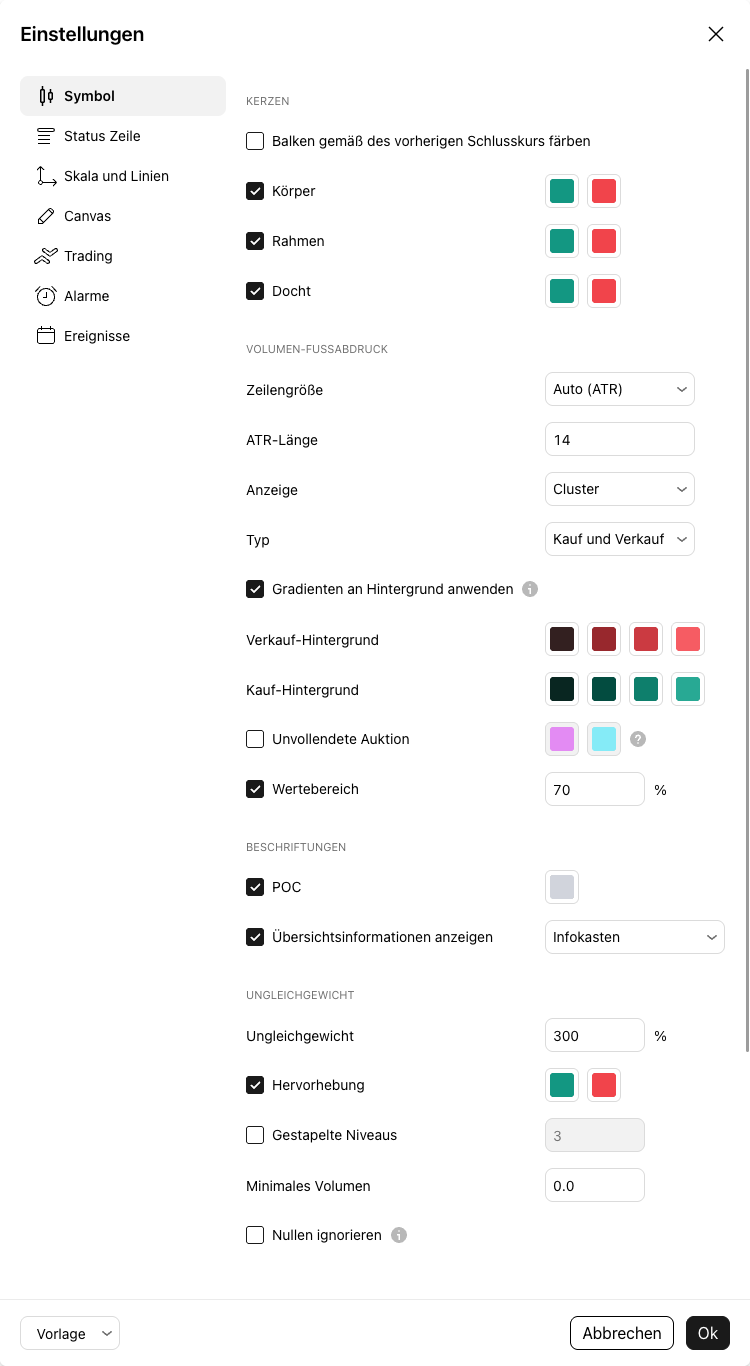
All footprint settings sit in the chart settings on the Symbol tab, not in an indicator. Open them with a right click on the chart, then Settings. The names below are those of TradingView’s English help; the screenshot shows the German interface.
 Click to enlarge
Source: Screenshot of TradingView Desktop by Kagels Trading.
Row size: how many prices one row holds
Row size decides how fine the footprint is, and it changes everything you read. In Auto mode, TradingView sets the row height to 0.2 times the normalized ATR, with an adjustable ATR length. In Manual mode, you choose the number of ticks per row.
For the ES, I start with a manual row size. One tick is 0.25 points, so 4 ticks per row means one row per full point. Manual rows keep the grid the same from day to day, which makes imbalances and the point of control comparable.
Display and type: four ways to show the same volume
Display controls the cell width: Cluster gives every cell the same width, Profile makes it wider the more volume traded. TradingView added the Profile mode and the Ladder type on March 14, 2025, according to its blog post on the new modes. Both modes show the same volume; only the drawing changes.
Type controls which numbers you see in the cells. TradingView offers four types, and the right one depends on your question:
- Buy and sell: the default. Sell volume left, buy volume right at each price.
- Delta: only the difference between buy and sell volume per row, so you see at a glance which side dominated.
- Total: only the total volume per row, like a small volume profile inside each bar.
- Ladder: like Buy and sell, but only the larger cell of each row is colored, which makes the dominant side easier to see.
Value area, POC and imbalances
The value area and point of control work like in a volume profile, but for each single bar. You set the value area percentage (70 by default), and the chart draws the value area high and low. The point of control marks the row with the most volume inside the bar. How these terms work in a full profile is explained in the volume profile guide linked above.
An imbalance compares diagonally, not within the same row. TradingView compares the buy volume at a price with the sell volume one level below, and the sell volume at a price with the buy volume one level above. With the default of 300 percent, a level is highlighted when the larger of the two is at least three times the smaller. Buy imbalances appear on the right, sell imbalances on the left. Under stacked levels, you set how many consecutive levels with an imbalance on the same side count as a stacked imbalance. The option is off by default; switched on, it starts at three levels.
Summary info: info box or table
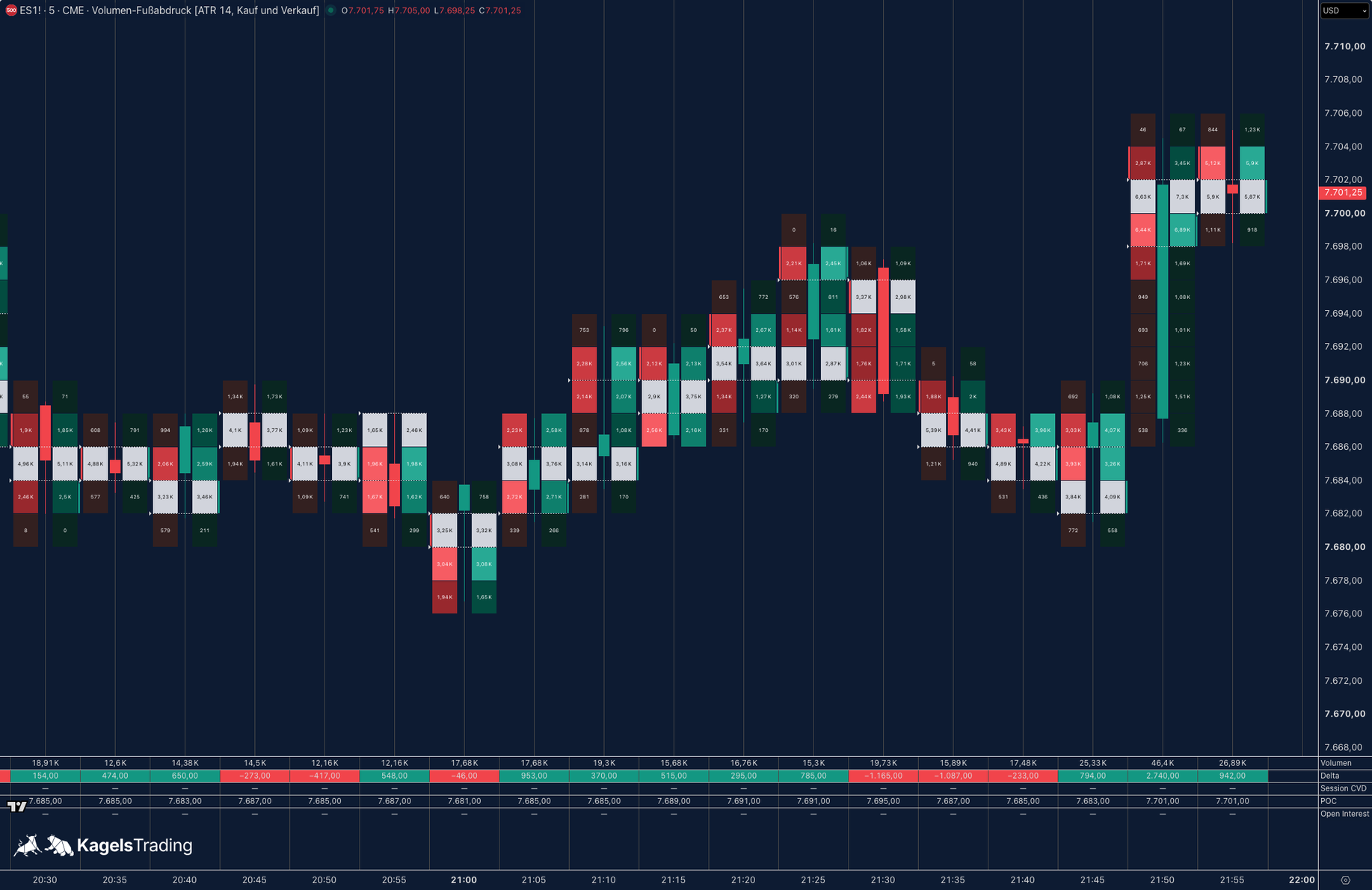
Summary info shows the key numbers of each bar, either in a small box or since October 17, 2025, in a table below the chart. According to TradingView’s post on the table, you can choose up to 15 metrics. Among them are volume, buy and sell volume, delta, minimum and maximum delta, the session’s cumulative volume delta (CVD), the point of control, the high to low range and, for futures, the open interest high and low.
 Click to enlarge
Source: Screenshot of TradingView Desktop by Kagels Trading.
I find the table more useful than the box. It shows one column per bar with the metrics in rows, so you can compare delta and volume across bars without hovering. Session CVD resets each day on intraday timeframes, which fits a day trading view.
Alerts and Pine Script on the footprint
You can set alerts directly on footprint conditions. The help lists four imbalance alerts (new buy imbalance, new sell imbalance, buy imbalance is stacked and sell imbalance is stacked) plus alerts on volume delta, total buy volume and total sell volume. Because the chart repaints, check these alerts against the chart before you rely on them.
Since March 2, 2026, Pine Script can read footprint data as well. The function request.footprint() returns the buy and sell volume, delta, point of control and the rows of a bar to your own script, according to TradingView’s announcement. It needs Premium or Ultimate. The same data source applies, so a script inherits the estimate of the buy and sell split. If you are new to the language, start with our Pine Script guide.
Community footprint indicators are a different thing. The public library has many scripts with “footprint” in their name, and many of them are free. Before the Pine function existed, such scripts built their numbers from lower-timeframe bars. Read each script’s description to see how it splits the volume before you trust it.
TradingView footprint vs ATAS and Bookmap
TradingView wins on convenience, the dedicated platforms win on data. The table shows where the line runs, based on the TradingView help and the platform descriptions in our comparison of TradingView alternatives.
| Question | TradingView volume footprint | ATAS, Bookmap and similar |
|---|---|---|
| Buy and sell split | Estimated from intrabar direction | From trades at bid or ask, where the feed supplies them |
| History | Coarser the further back | Depends on the stored tick data |
| Order book | Not part of the footprint | Bookmap’s focus is the order book heatmap |
| Charts, alerts, broker | All in one platform | Own charting and order flow tools; execution depends on platform, connection and plan |
| Extra cost | Premium plan and market data | Own license plus market data |
If you trade futures from footprints every day, test a dedicated platform next to TradingView. If you mainly want to see where volume sat inside your existing setups, TradingView’s footprint is often enough, and you keep your charts, drawings and alerts in one place.
Strengths and limits of the TradingView footprint
The footprint is strongest as a second look at a level you already marked. Its limits all come from the data, not from the display.
Strengths:
- One platform: footprint, charts, drawings, alerts and broker connection in the same window.
- Flexible display: four types, two display modes and a summary table with up to 15 metrics.
- Easy to learn: you see the layout of a footprint without installing extra software.
Limits:
- Estimated split: buy and sell volume come from intrabar direction, not from bid and ask.
- Repainting: bars and imbalances can change when a bar is recalculated from a different intrabar source.
- Plan and data costs: you need Premium or Ultimate; delayed data is enough to learn, live trading needs real-time data.
- Weak for forex and CFDs: there, the footprint splits tick volume at best, or has no usable volume.
Conclusion: a good way to learn footprints, not a full order flow platform
TradingView’s volume footprint shows exchange volume grouped by price and an estimated split between buyers and sellers. For learning the layout, reading delta and spotting imbalances at your own levels, it is convenient and well built. If your trading depends on knowing exactly who hit the bid or lifted the offer, use a platform with tick data and keep TradingView for your charts.
Frequently asked questions about the TradingView volume footprint
Is the footprint chart on TradingView free?
No, the volume footprint chart type needs Premium or Ultimate, as of October 22, 2026. The free Basic plan and the cheaper Essential and Plus plans do not include it. Free community indicators with “footprint” in their name exist, but they estimate the split from smaller bars.
Is the TradingView footprint chart accurate?
The volume itself comes from the data feed, but its spread across the rows and the split into buying and selling are estimates. TradingView classifies volume by the direction of intrabars, not by trades at the bid or ask, and older bars use coarser data. The chart repaints by design, so values can change after the fact.
How do I add a footprint chart in TradingView?
Click the chart type button in the top toolbar and choose Volume footprint. Then zoom in until the numbers appear in the cells. The settings, such as row size and type, are in the chart settings on the Symbol tab.
What is the best row size for the volume footprint?
There is no single best value, but a manual row size gives you a stable grid. For the E-mini S&P 500, 4 ticks per row means one row per full point. Auto mode adapts the rows to volatility, so the grid changes from day to day.
Can I use the TradingView footprint for forex?
Only with care, because spot forex has no central exchange volume. Some feeds supply tick volume, the number of price changes, others no usable volume. For real volume, use currency futures on the CME instead.
More TradingView guides
- Choose a plan
TradingView Review 2026: Plans, Pricing and Is It Worth It?
Prices of all plans in US dollars, real-time data costs, Black Friday and whether it is worth it.
- Learn the basics
How to Use TradingView: A Beginner Tutorial in 11 Steps
A beginner tutorial in 11 steps: chart, symbol search, drawings, indicators, log scale, watchlists, alerts, layouts and trading.
- Save on a plan
TradingView Black Friday 2026: Dates, Deals and Best Plan
Expected 2026 timing, verified past deals and what to check before buying a plan.
- Practice without risk
TradingView Paper Trading: Setup, Limits and Tips (2026)
Set up the free paper trading account, place your first orders and learn where the simulation falls short.
- Compare platforms
TradingView Alternatives 2026: 7 Platforms Tested
Seven platforms compared, with a decision aid for when switching makes sense.
- Connect a broker
Best Brokers for TradingView 2026: A Guide for US Traders
Which US brokers work with TradingView and what to check before you connect one.
- Connect an AI assistant
TradingView MCP and API: What Is Official in 2026
What the official MCP server, webhooks and community MCP servers can do, and why there is no data API.
- Test a strategy
TradingView Backtesting: Test a Strategy Without Real Money
Manual testing with Bar Replay and automatic testing with the strategy report.
- Plan around economic data
Economic Calendar: Key US Dates and the 6 Best Calendars
The key US release dates to the end of 2026, how to read a calendar and six free calendars compared, TradingView first.
- Write an indicator
Pine Script in TradingView: Basics, Editor and Version 6
Pine Script basics, the editor and version 6, with code you can copy.
- Use the AI Copilot
TradingView AI Copilot Review: 7 Tests, Price and Limits
Seven real tasks for the paid AI add-on: what it costs, what it got right and where you must check it.
- Filter stocks with the screener
TradingView Stock Screener: How to Use It and What It Costs
How the stock screener works, what the free plan can do, the Pine Screener and three tested popular screens.
- Read the market on a heatmap
Stock Heatmap: How to Read It, TradingView and Finviz
What size, color and grouping mean, the free TradingView heatmap step by step and how it compares with Finviz.