
Pine Script in TradingView: Basics, Editor and Version 6


Contents
- Pine Script in 30 seconds
- What is Pine Script?
- Pine Script v6: what changed with the current version
- The pros and cons of Pine Script at a glance
- Are there alternatives to Pine Script?
- Learning Pine Script: the best resources and communities
- Pine Script tools: buy or build?
- First steps with Pine Script: simple scripts
- Opening and using the Pine Editor
- Creating and saving the indicator
- Conditional statements with if
- Arrays for storing values
- Visualizing data with plot and color
- Creating alerts
- Other time frames with request.security
- Math functions such as abs
- ATR (Average True Range)
- Tips for beginners
- Conclusion and next steps
- Frequently asked questions about Pine Script
- About the author
Pine Script is the programming language you use on TradingView to build your own indicators and trading strategies. It runs only on TradingView’s servers. So you need no installation, no development environment of your own and no server that keeps running at night. If you have ever looked for an indicator that nobody offers ready-made, sooner or later you end up with this language.
Since November 2024, version 6 has been the current release, and that is more than a new number. When TradingView switched, it announced that all future updates would apply to v6 only. If you still write in v5 today, you will never see the additions from 2025 and 2026. This article shows what the language can do, where its limits are and how to build your first indicator in the Pine Editor.
Pine Script in 30 seconds
- Made for TradingView: Pine Script is TradingView’s own language for indicators, strategies and libraries. You cannot use it anywhere else.
- Easy to start: the syntax is compact. A simple moving average takes five lines, and you see the result on the chart right away.
- Runs in the cloud: every script runs on TradingView’s servers. You only need a browser and a TradingView account; a free account is enough.
- Version 6 is current: since November 2024 all new features come only to v6. Older scripts keep running but get nothing new.
- Clear limits: computing time, memory, script size and data from other symbols are limited. Pine Script cannot send orders to a broker by itself.
What do you want to do with Pine Script?
- Use a ready-made indicator or strategy, without codeCommunity scripts
- Write your first indicatorPine Editor
- Test trading rules on past pricesStrategies
- Get an alert when a condition is metAlerts
- Run your script across many symbolsPine Screener
- Move an older script to version 6Converter
- Send real orders automaticallyNot built in: alert plus outside service
What is Pine Script?
Pine Script is a programming language developed by TradingView. Traders use it to write their own indicators, trading strategies and libraries and run them directly on TradingView’s servers.
The language is deliberately narrow and built for one purpose: analyzing price data. Candles, time series and ready-made indicators are built-in building blocks. In return, it lacks almost everything that makes a general programming language. You cannot connect to a database, build a website or train an AI model with it.
Pine Script knows three kinds of scripts, and this choice decides what your code does in the end. The first line of code after the version tag declares it: indicator(), strategy() or library().
- An indicator draws lines, areas or symbols on the chart. It calculates on historical bars and recalculates as the open realtime bar updates.
- A strategy is a script with a
strategy()declaration. It contains entry and exit rules, simulates trades and can be tested against historical prices in the strategy report. - A library shows nothing by itself but provides functions that other scripts can import.
One thing Pine Script cannot do is send orders to your broker on its own. Scripts run in TradingView’s chart environment and create signals and alerts there. TradingView itself says that automated strategy trading with a brokerage account is not available yet (help page). To turn a signal into an order, you need an outside service or a broker that receives the alert through a webhook. Check TradingView’s Terms of Use first: section 3 names “alerts, webhooks” among the information that may not be used “for any form of automated trading”. If you do not know this, you plan the path from signal to order too late.
- TradingViewScriptYou write an indicator or strategy in the Pine Editor. It runs on TradingView's servers.
- TradingViewSignalOn the chart, the script marks a condition, such as a crossing line or a simulated strategy trade.
- TradingViewAlertAn alert fires on that condition and can send a message to a webhook URL.
- You or a providerOutside serviceA service you set up receives the message and turns it into an order.
- Your brokerBrokerThe broker accepts or rejects the order and executes it if its conditions are met. Only this step moves real money.
A dark line marks each hand-over. TradingView's part ends with the alert: according to TradingView, automated strategy trading with a brokerage account is not available yet.
Pine Script v6: what changed with the current version
TradingView moved Pine Script to version 6 in November 2024 and put a sentence into the release notes that matters to everyone who writes scripts: from that day on, all future Pine updates apply to this version only. A script in v5 keeps running and is not switched off. It just gets nothing new.
The most important change concerns the request.*() functions, which a script uses to fetch data from other symbols or time frames. In v6 they can be called dynamically, inside loops and conditions, and the requested symbol may change from candle to candle. In addition, true/false values are now strict: a bool in v6 is always true or false and never empty (na). That sounds like a detail, but it removes exactly the kind of error beginners get stuck on most often.
Since the switch, TradingView has added a number of features that v5 will never get:
- January 2026:
request.footprint()gives access to volume footprint data, including the point of control. It requires a Premium or Ultimate plan. - April 2026: multiline strings.
- July 2026: a calculation option for strategies that runs through every available historical tick and so reduces the risk of lookahead bias (Premium and Ultimate). With the same update, the Strategy Tester was renamed the strategy report.
- August 2026: the new keyword
once, which runs a block of code only once: after the block has executed on a closed bar, it does not execute on later bars.
| Version | Since | Status |
|---|---|---|
| v6 | November 2024 | current, receives all new features |
| v5 | October 2021 | runs, no new features |
| v4 | 2019 | runs, older documentation still available |
| v3 | before 2019 | runs, older documentation still available |
| v1 and v2 | before 2019 | described only in the migration guides |
Source: TradingView release notes, migration guides and the version menu of the documentation, as of 25 September 2026.
Converting an old script usually takes minutes, because the Pine Editor has a built-in converter. You open the script, choose “Convert code to v6” in the script menu and then look at the places the converter cannot solve on its own. The script has to compile without errors first. Older scripts are converted in stages, because the converter always moves only one version up: v4 to v5, then v5 to v6. A v3 script goes to v4 first. Scripts in v1 or v2 need manual migration before you can use the converter.
The pros and cons of Pine Script at a glance
Pine Script saves you a lot of work, but it has clear limits you should know before you start.
Advantages
| Advantage | What it means for you |
|---|---|
| Simple, readable language | The syntax is clear and compact. Even without much programming experience, you can build your first indicators quickly. |
| Runs in the cloud | Scripts run on TradingView’s servers. You can reach them from anywhere and need no local setup. |
| Little code for a lot | Many calculations and charts take only a few lines, because indicators and time series are built in. |
| Built into TradingView | Scripts run directly on the chart, and you see the result immediately. That makes it fast to test and adjust an idea. |
| Regular updates | TradingView keeps developing the language and takes feature requests from users. |
| Large community | More than 150,000 published Community Scripts, half of them open source, plus tutorials and forums such as PineCoders. |
| Backtesting built in | Strategies can be tested on historical data in the strategy report before any real money is at risk. |
Disadvantages
| Disadvantage | What it means for you |
|---|---|
| Limited resources | Data from other symbols, execution time, memory and script size are limited so the servers are shared fairly. Large projects hit these limits. |
| Limited functionality | Compared with Python or C++, Pine Script offers far fewer possibilities. It was built for TradingView only. |
| Learning curve | Despite the simple syntax, beginners without programming experience need time. Understanding how a script runs bar by bar takes the most effort. |
| Not for very demanding tasks | High-frequency trading or machine learning belong in other languages. |
| Differences between versions | Tutorials for v3, v4, v5 and v6 differ, which can be confusing. |
| Tied to TradingView | Scripts run only on TradingView and cannot be moved to another platform. |
| Limited debugging | Finding errors is more cumbersome than in a full development environment, especially in larger scripts. |
Are there alternatives to Pine Script?
Pine Script is the only programming language built specifically for TradingView. If you want to create and run indicators or scripts on TradingView, there is no direct alternative. TradingView is one of the most widely used charting platforms, and its user base keeps growing, which makes learning Pine Script more worthwhile. If you are looking at other platforms altogether, see our TradingView alternatives.
Alternatives for specific tasks
There are cases in which other languages or platforms are the better choice.
Automated trading on a trading platform. If your strategy should place orders by itself, a platform with a built-in connection to the broker can be the simpler route. The whole path from rule to live system is covered in our guide to algo trading:
- MetaTrader 5: for retail trading automation, MetaTrader 5 runs Expert Advisors written in MQL5 (MetaQuotes help).
High-frequency trading (HFT). Languages such as C++ or Java are better suited here, because they offer high execution speed and low latency. Specialized low-latency systems often use:
- FIX protocol (Financial Information eXchange): often used in custom trading systems built in C++ or Java.
Machine learning and data analysis. Python is the standard for complex data analysis and training machine learning models, with libraries such as TensorFlow, Keras and pandas. Platforms that support Python include:
- QuantConnect: a platform for algorithmic trading and backtesting in Python.
- Interactive Brokers: offers an API that you can use from Python to connect your own models.
A practical case for this switch from our own work: for an opening range breakout in the DAX, Pine Script could not model the re-entry logic. Only the Python version delivered reliable results.
Learning Pine Script: the best resources and communities
The number of Pine Script resources can be overwhelming, especially when you have little experience. To make the start easier, here is an overview of the most useful resources, communities and services.
Official resources from TradingView
The official resources are the best starting point, for beginners and advanced users alike:
- User Manual: a full introduction to the language, its syntax and many examples. The sections on errors and on limits help you avoid typical mistakes and keep scripts fast.
- Reference Manual: lists every function, variable and keyword. Useful when you are looking for a specific function or its exact use.
- First indicator: a short guided start for anyone who wants to see results quickly.
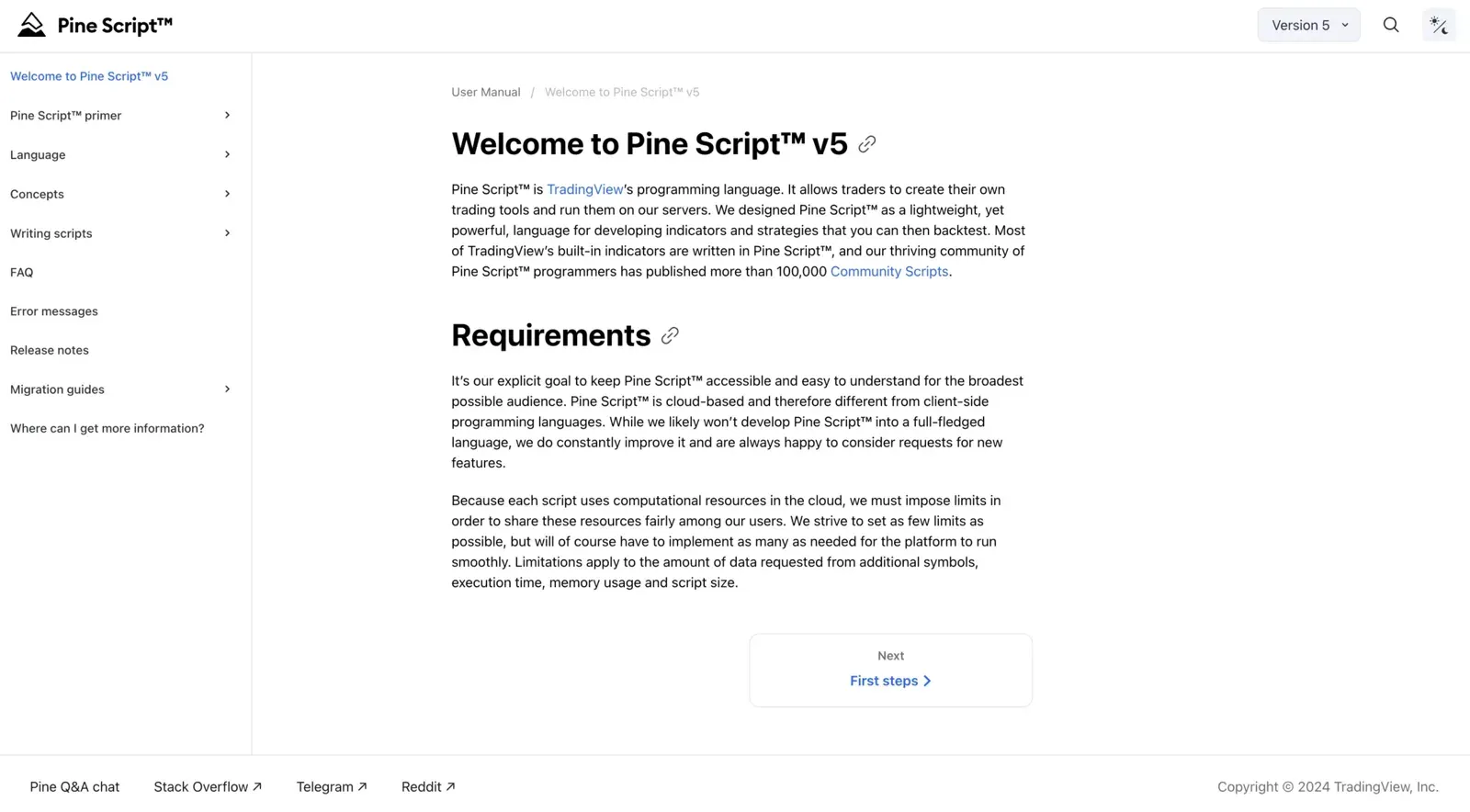 The Pine Script User Manual on TradingView. The screenshot is from 2024 and still shows version 5; today the manual opens on v6.
The free script library on TradingView
TradingView offers a large library of more than 150,000 published scripts, indicators and strategies created by the community. Many of them are free, and for about half of them the source code is open, so you can read and adapt it.
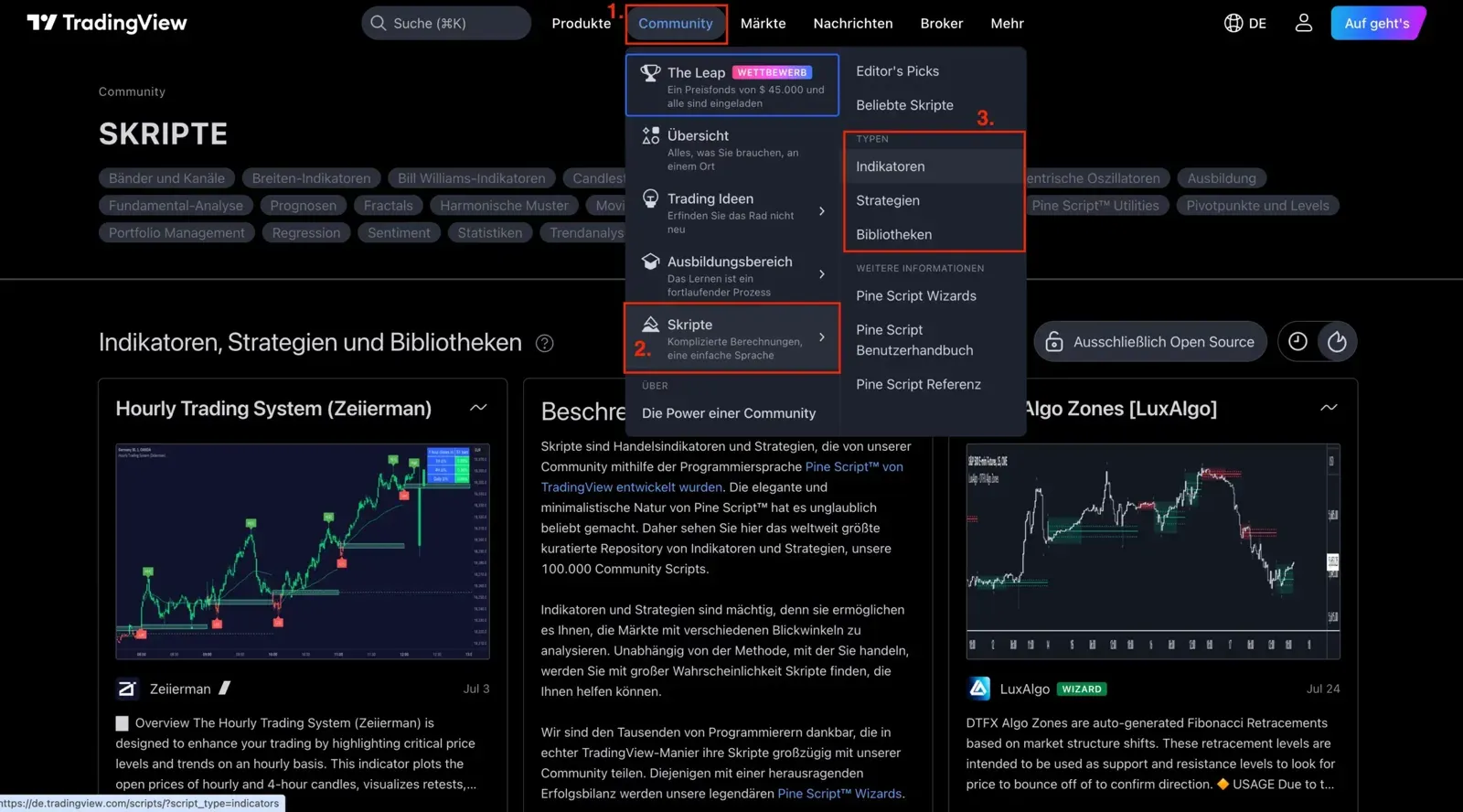 The way into the script library: Community (1), Scripts (2), then indicators, strategies or libraries (3). German interface from 2024; the text on the page still says 100,000 scripts, the documentation now says more than 150,000.
This library is an excellent resource for studying existing scripts and adapting them for your own use. Keep an eye on the scripts of the Pine Wizards, a group of top programmers whom TradingView recognizes for their contributions to the community. Many of their scripts are free.
Communities and forums
If you get stuck or have a question about a specific line of code, these forums help. Check first whether your question has already been answered:
- Pine Script Q&A on TradingView: a chat on TradingView dedicated to Pine Script, where experienced users answer questions.
- Stack Overflow: for specific technical problems and detailed questions.
- Telegram group: an active group run by PineCoders for questions and answers.
- Reddit r/pinescript: a subreddit dedicated to Pine Script, with discussions, help and examples.
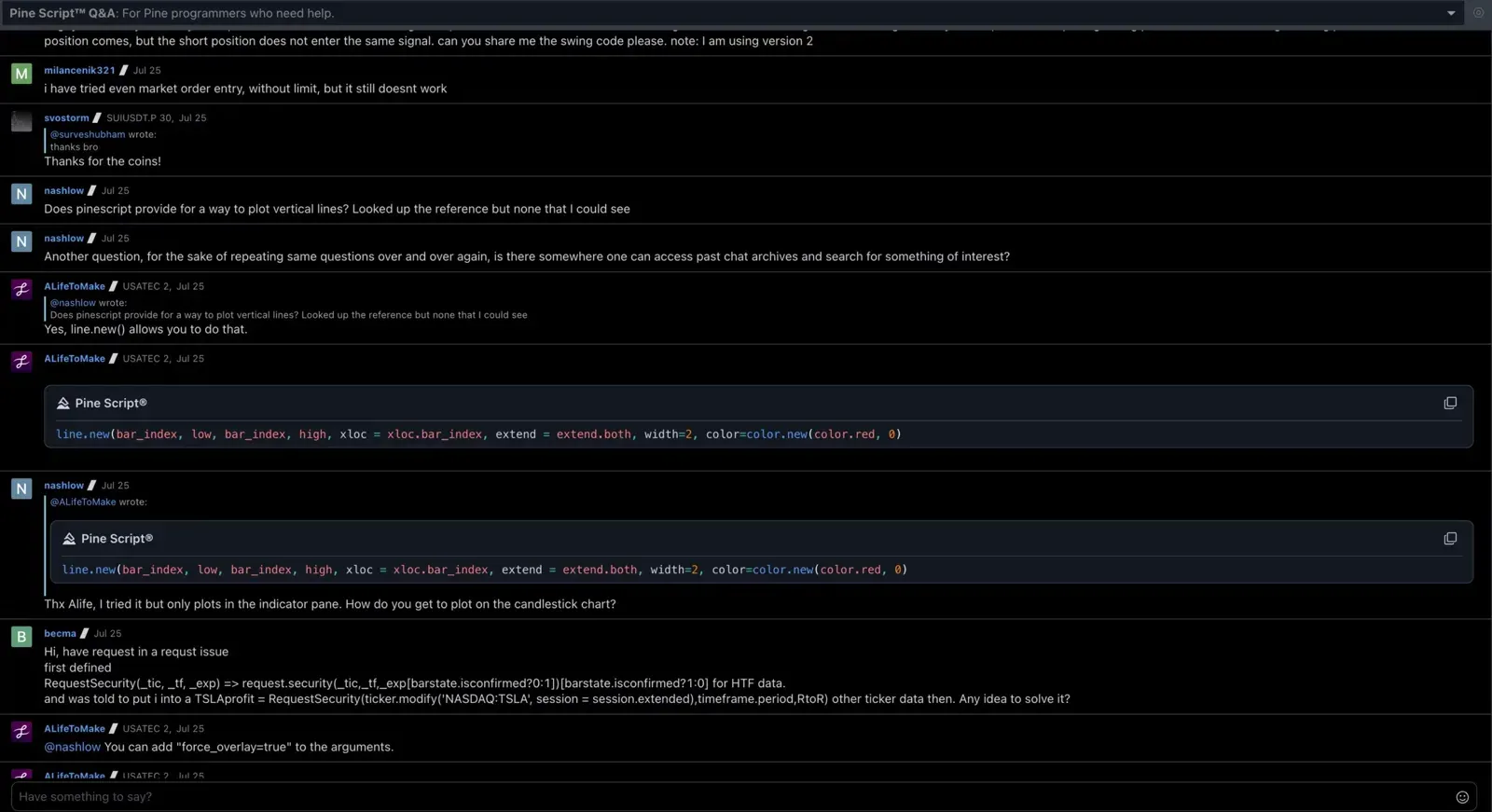 The Pine Script Q&A chat on TradingView: users post questions, others answer with code.
YouTube tutorials
YouTube is a good way to learn as a beginner or to build on what you know. There are many tutorials and complete guides. Some of the best channels:
- Zen & The Art of Trading, with a full Pine Script v6 course for beginners
- QuantNomad
- BigBits
Can AI help you write Pine Script?
Only to a degree. General AI tools such as ChatGPT can help with basic questions and simple code snippets, but they are not specialized in Pine Script and often mix up versions. For more complex tasks, specialized tools such as the Pine Script Wizard are built specifically for Pine Script. Whatever the tool, check the code in the Pine Editor before you rely on it. TradingView’s own AI Copilot also writes Pine Script; in our TradingView AI Copilot review, its first indicator compiled but its signal never fired. What AI can and cannot do beyond writing code is covered in our AI trading overview.
Online courses
If you prefer structured content and a course format, these are worth a look:
- TradingCode.net (free): a comprehensive free set of Pine Script tutorials.
- Learn TradingView Pine Script Programming From Scratch on Udemy: a complete course for beginners.
- AlgoTrading101: a detailed guide that leads step by step from the first script to your own strategies.
Professional help and services
Sometimes learning on your own is not enough. If you are stuck despite all the free resources, you can hire a professional programmer:
- TradingView’s list of Pine programmers for hire: trusted programmers you can hire for individual projects.
- Freelance platforms such as Fiverr or Upwork, where you can find experienced Pine Script developers for specific tasks.
- PineCoders: a community of experienced Pine Script developers that offers support and publishes coding resources.
Pine Script tools: buy or build?
Buying saves time and gives you access to tested solutions from experienced developers. That helps most when you do not have much programming knowledge. The downside: it can be expensive, and you depend on the developer for updates and support.
Building your own gives you full control over functions and adjustments. The learning process helps you understand how indicators work, which pays off in the long run. The downside: it takes time and a good understanding of Pine Script, which can be a real challenge for beginners.
Two well-known providers of Pine Script indicators and strategies:
- LuxAlgo: one of the Pine Wizards on TradingView. Offers many free indicators; premium indicators come with a membership.
- Zeiierman: a large trader community with many free indicators and premium indicators on subscription.
Tip: in the TradingView library, paid or invite-only indicators are often marked with a lock symbol. Before you buy, search the library to make sure the indicator you want is not already available for free.
First steps with Pine Script: simple scripts
In this section you learn how to open the Pine Editor in TradingView and how to write and run a simple script. First, a look at the community scripts and at the difference between indicators and strategies.
Browsing community scripts
TradingView’s library holds more than 150,000 scripts from the community. According to TradingView, about half of them are open source. You can read and adapt their source code, which makes them an ideal way to learn.
To find a script, click “Indicators” on the chart and choose the “Community” tab. There you can sort by categories such as “Editors’ picks”, “Top” and “Trending”.
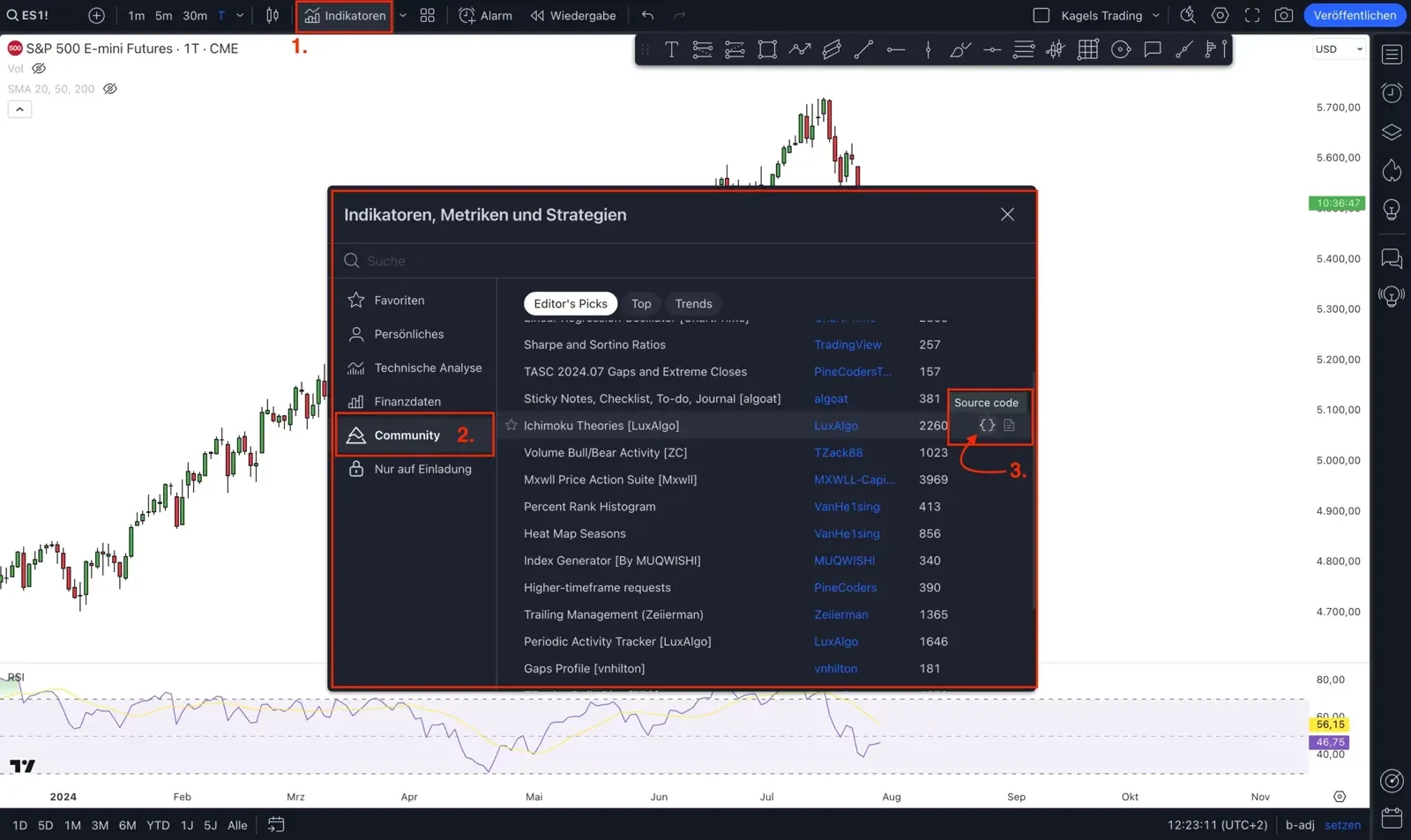 Open the indicators dialog (1), choose Community (2), then the source code icon next to a script (3). German interface from 2024, S&P 500 E-mini futures daily chart.
Once you have found a script that interests you, add it to your chart and open it in the Pine Editor. There you can read and adapt the source code. To change a script’s settings, double-click its name on the chart or use the settings button.
Indicators vs. strategies
While browsing the library, you will have noticed that there are indicators and strategies. What is the difference?
Indicators visualize market patterns and trends. They show data directly on the chart and help you make trading decisions. Indicators such as the simple moving average (SMA) and the Relative Strength Index (RSI) are widely used and easy to understand. They update with every new price.
Strategies define trading rules and simulate trades on historical data. They let you check how a trading idea would have performed in the past. You can use a ready-made strategy from the library without writing any code; writing or changing the rules yourself requires Pine Script. By default a strategy calculates once per bar and places simulated orders with commands such as strategy.entry() and strategy.exit(). The results appear in the strategy report, with the tabs Metrics and Trades. Automating real orders is a separate third step that needs alerts and an outside service, as described above.
In short: indicators show you what is happening in the market so you can decide better. Strategies turn your decisions into fixed rules and show how those rules would have worked historically.
Opening and using the Pine Editor
The Pine Editor is the heart of Pine Script on TradingView. This is where you write, edit and test scripts.
A note on the screenshots below: they are from summer 2024 and still show //@version=5 in the first line. The code examples in the text are written for v6, and they run in v6 unchanged apart from the version line, because none of the changes in the migration guide affects these commands.
Opening the Pine Editor
Log in to TradingView and open a chart. Click the Pine icon in the right toolbar. The Pine Editor opens in a floating panel; you can also dock it or choose “Move to bottom” (TradingView help).
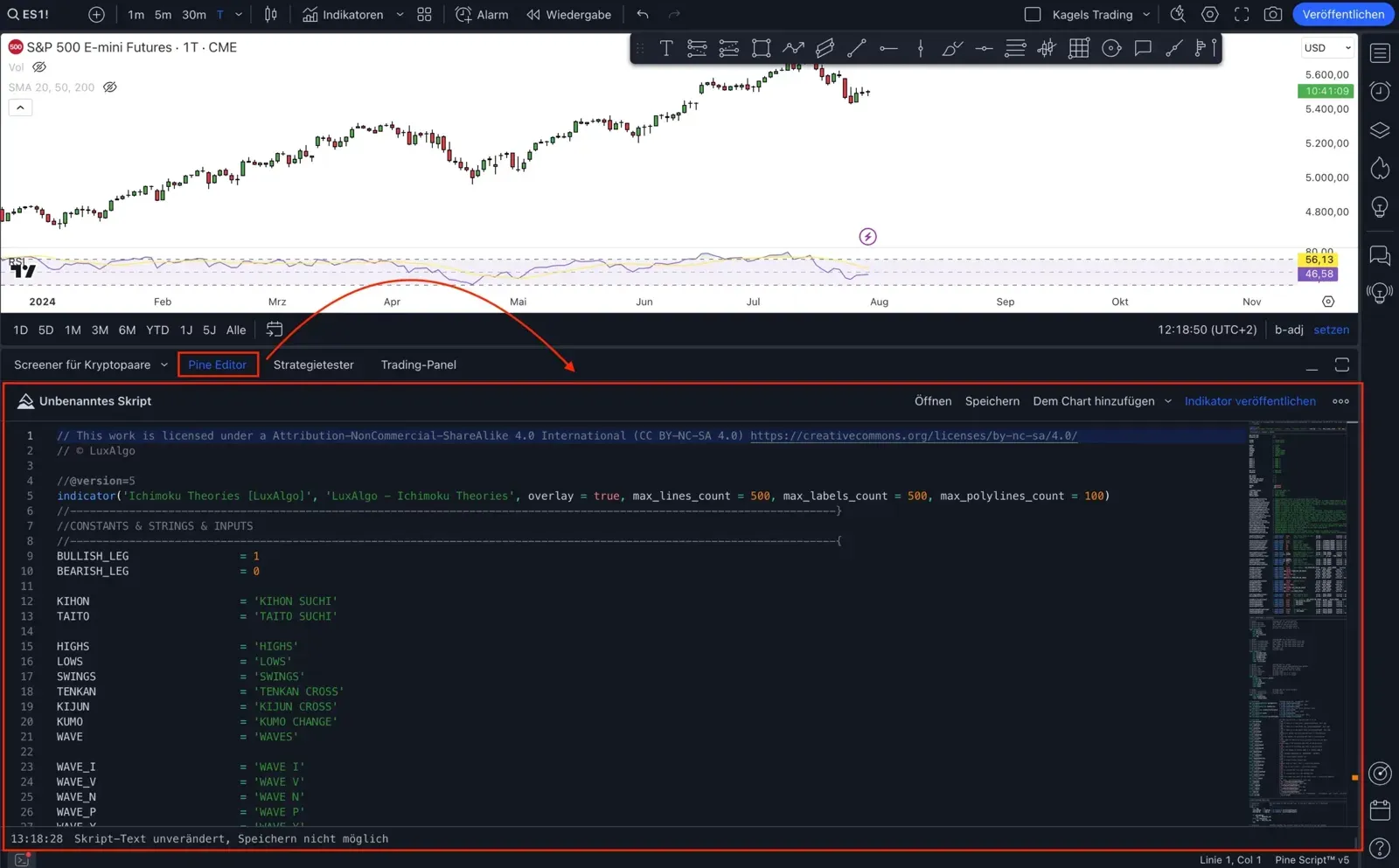 Historical layout: the Pine Editor in the panel below the chart, as it opened by default at the time. German interface from summer 2024 with a LuxAlgo script in v5; S&P 500 E-mini futures daily chart.
Using the editor
The Pine Editor gives you a simple interface for writing and testing scripts. The basic steps:
- Write a script: type your code into the editor. A simple example for a moving average (SMA):
//@version=6
indicator(title="Simple Moving Average", shorttitle="SMA", overlay=true)
length = input.int(14, minval=1)
sma = ta.sma(close, length)
plot(sma, color=color.blue)- Add it to the chart: click “Add to chart” to show your indicator or strategy on the chart.
- Save and manage: you can save your scripts to use them later or share them with others.
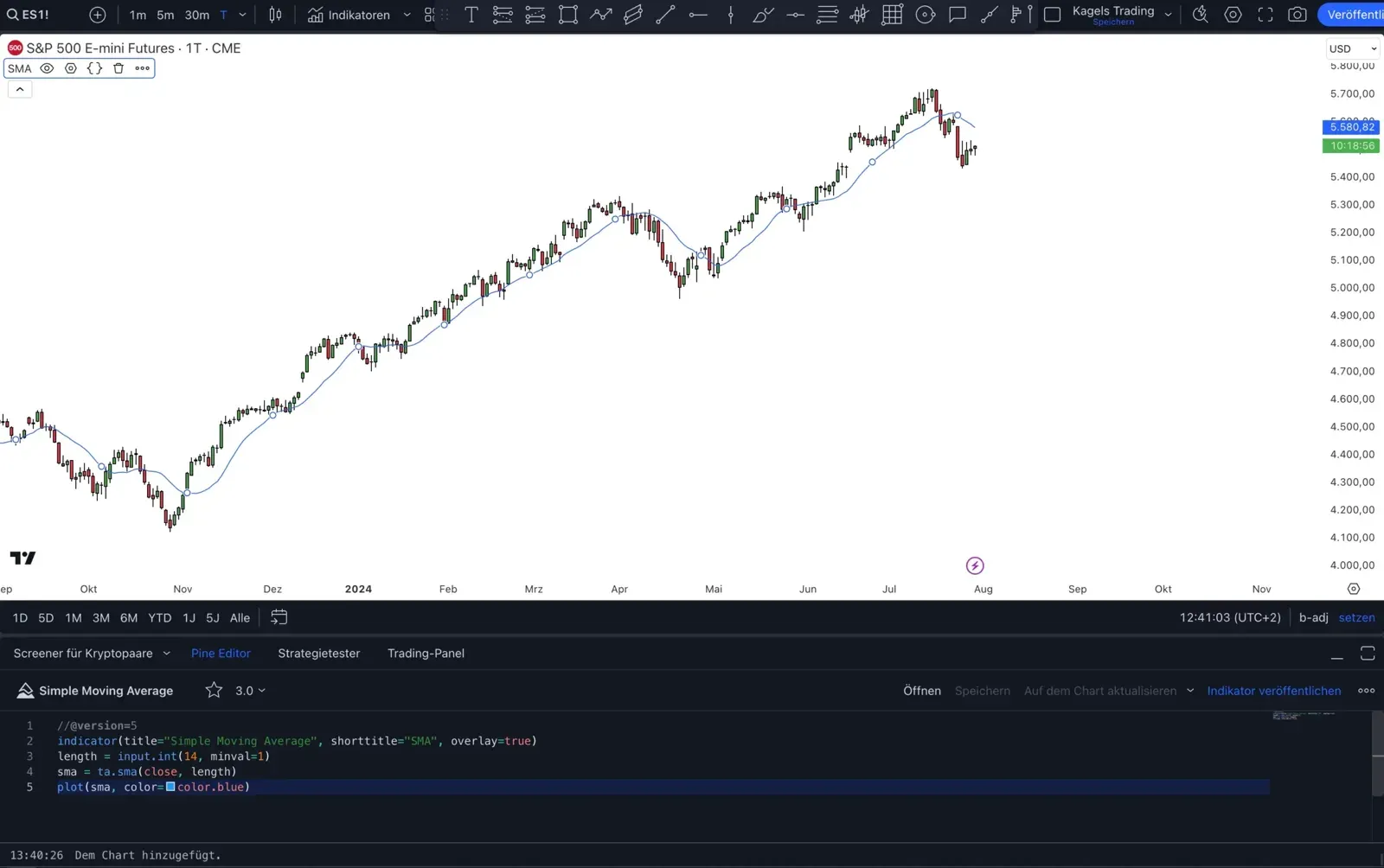 The SMA example on the chart: the blue line is the 14-day simple moving average of the S&P 500 E-mini future (daily chart, CME, summer 2024). The screenshot still shows version 5 in the first line.
Creating and saving the indicator
Once you have written your first indicator, save it in the Pine Editor. Click “Save” and give your script a name. That way you can always come back to it and keep adjusting it.
Running scripts on many symbols with the Pine Screener
A finished script does not have to stay on one chart. With the Pine Screener, you can run it across whole lists of symbols. You find it in TradingView under the screeners. There you select your own script and let it calculate across many symbols at once. That is the step from a single idea to a systematic search.
Since August 2026 you can choose an entire index as the source and scan up to 4,000 of its symbols. Before, you had to create a watchlist first. Two restrictions are worth knowing: the screener accepts only indicators, not strategies, and the script must contain at least one plot or an alertcondition() call. Scripts that do not qualify are shown as inactive in the selection dialog (TradingView help page). Plans and limits of the Pine Screener are summarized in our overview of the TradingView screener.
The most important functions explained
To use Pine Script, you should understand some basic functions and keywords. They help you build your own indicators and strategies.
Conditional statements with if
The if structure runs code only when a condition is met. For example, you can color the closing price green when it is higher than the open:
//@version=6
indicator("Conditional Plot Example", overlay=true)
// Conditional statement
plotColor = if (close > open)
    color.green
else
    color.red
plot(close, color=plotColor)
Explanation: if the closing price (close) is higher than the opening price (open), the close is plotted in green, otherwise in red.
Arrays for storing values
With array you can store and manage several values. Arrays are useful when you need a list of values, for example for more complex calculations:
//@version=6
indicator("Array Example", overlay=true)
var myArray = array.new_float(10)
array.set(myArray, 0, close)
plot(array.get(myArray, 0), color=color.blue)
Explanation: this example creates an array myArray with 10 slots and stores the closing price (close) in the first slot. This is one repeatedly updated slot, not a rolling list of ten closes.
Visualizing data with plot and color
The plot function and the color values show data on the chart. For example, you can display the closing price in blue:
//@version=6
indicator("Simple Plot", overlay=true)
plot(close, color=color.blue)
Explanation: this plots the closing price (close) on the chart in blue.
Creating alerts
Pine Script has two ways to create alerts. alertcondition() defines a condition in an indicator, which you then select when you create an alert in TradingView. The alert() function creates an alert event from the code and also works in strategies. For either method, you first create an alert in TradingView; its frequency setting determines when it can fire. The simple variant:
//@version=6
indicator("Alert Example", overlay=true)
alertcondition(close > open, title="Price Alert", message="Price is rising")
Explanation: the condition is true when the current close is above the open. Once you have created an alert on this condition, it can notify you with the title “Price Alert” and the message “Price is rising” at the frequency you selected.
Other time frames with request.security
The request.security() function fetches data from another time frame or symbol. This lets you bring data from different time frames into your script:
//@version=6
indicator("Timeframe Example", overlay=true)
dailyClose = request.security(syminfo.tickerid, "D", close)
plot(dailyClose, color=color.purple)
Explanation: this fetches the closing price (close) of the current symbol (syminfo.tickerid) on the daily time frame ("D"). On an intraday chart, the current daily value can change until the daily bar closes and can repaint after the script reloads (TradingView on repainting).
Math functions such as abs
math.abs returns the absolute value, which turns negative values into positive ones:
//@version=6
indicator("Absolute Value Example", overlay=false)
absValue = math.abs(close - open)
plot(absValue, color=color.orange)
Explanation: this calculates the absolute difference between the closing price (close) and the opening price (open), the size of the candle body. overlay=false shows it in its own pane below the chart, because on the price scale the small values would be hard to see.
ATR (Average True Range)
The ta.atr function calculates the Average True Range, which measures the volatility of a market:
//@version=6
indicator("ATR Example", overlay=false)
atrValue = ta.atr(14)
plot(atrValue, color=color.yellow, title="ATR")
Explanation: ta.atr(14) calculates the ATR over the last 14 bars, and plot() draws it in yellow in its own pane below the chart.
These functions are the basis of many indicators and strategies in Pine Script. There are many more functions and possibilities; the resources linked above explain them in depth.
A finished script should be tested before you trade it. How to evaluate a strategy in the strategy report, and when the manual route with Bar Replay is the better choice, is explained in our guide to backtesting on TradingView. The general rules of a clean test, such as costs and look-ahead bias, are in our backtesting guide.
Tips for beginners
When you start with Pine Script, a few habits help you write clean, working code.
Best practices for clean and efficient code
- Comments and clear structure: comment your code so the purpose of each part is clear. A clear structure helps you keep track and find errors faster. Use meaningful names for variables and functions.
- Avoid unnecessary calculations: calculate only what you really need. That makes your script faster and keeps it within the limits.
- Debugging: use functions such as
plot()andlabel.new()to make values and states visible on the chart, or write messages to the Pine Logs withlog.info(). That way you can check whether your calculations are right.
Common mistakes and how to avoid them
- Watch the indentation: Pine Script does not use semicolons or curly brackets. Code blocks under
if, loops and functions are defined by indentation of four spaces or one tab. Wrong indentation is one of the most common beginner errors. - Define variables first: make sure every variable is declared before you use it. Without
var, a declaration is initialized again on each execution of the script. - Check the syntax regularly: use the Pine Editor’s built-in tools. Its error messages and hints help you find and fix problems quickly.
- Keep the logic compact: a compact, well-structured logic shortens execution time and keeps your code readable.
Conclusion and next steps
Pine Script is the easiest way to put a trading idea into code and see it on the chart immediately. That is its strength and its limit at the same time. For testing an idea, the language is hard to beat. For everything that comes after, such as order execution, open-ended data analysis and machine learning, you need other tools.
If you start today, start directly with v6. Most older tutorials on the web still show v5. Their examples keep working, but they miss everything added since November 2024. A good path for the beginning: the official manual, a small script of your own in the Pine Editor, and then a look at the community scripts whose source code is open.
Pine Script is a language that beginners can learn. If you want to develop your own scripts and indicators and later move towards automated trading, learning it is worthwhile, especially if you already have some programming experience. If you do not want to invest that time, buying ready-made indicators or working with an experienced programmer can be the faster route.
Frequently asked questions about Pine Script
What is Pine Script used for?
Pine Script is used to write your own indicators, trading strategies and libraries for TradingView. In practice, traders use it mainly for three things: drawing their own signal logic on the chart, checking a rule-based idea against historical prices in the strategy report, and triggering alerts when a condition they defined occurs.
How do I get started with Pine Script?
Log in to TradingView and open a chart. Click the Pine icon in the right toolbar to open the Pine Editor, where you write and test your scripts. TradingView’s official documentation and many online tutorials give a good introduction. See the resources linked in this article for the best way to start.
What is the difference between indicators and strategies?
Indicators support chart analysis by showing information such as moving averages or the RSI. Strategies contain rules and simulate trades on historical data, which you then evaluate in the strategy report. Neither sends orders to a broker by itself; that needs alerts and an outside service.
Which versions of Pine Script are there?
There are six versions, and v6 is current. TradingView released it in November 2024 and has since written all new features for this version only. Version 5 from October 2021 keeps running but gets nothing new. The official documentation still covers v3 to v6; versions 1 and 2 are described only in the migration guides.
Can I use Pine Script on other trading platforms?
No. Pine Script was developed specifically for TradingView and only runs there. Other platforms use their own languages, which offer different functions and commands.
Is Pine Script free?
The language itself costs nothing. With a free TradingView account you can write, save and run scripts on the chart. What is limited is not Pine Script but the account around it, such as how many indicators you can run on one chart at the same time and how many alerts you can set. You pay for the plan, not for the language. Some newer functions, such as footprint data, require a Premium or Ultimate plan.
Is Pine Script hard to learn?
For a simple indicator, a few lines and an afternoon are enough. A moving average takes five lines. Strategies are harder, because you need to understand the execution model: indicators recalculate as the open realtime bar updates, strategies normally calculate at bar close, and no script knows the future. If you skip this point, you can build backtests that look strong in hindsight and fail in live trading.
Can ChatGPT write Pine Script?
It can write simple code snippets and answer basic questions, but it often mixes up versions or uses functions that do not exist. Treat its code as a draft: paste it into the Pine Editor, fix the errors the editor reports, and check on the chart that the script does what you intended. Specialized tools such as the Pine Script Wizard are built for Pine Script, but the same check applies.
This article was written by Bjarne Claussen, who trades systematically in crude oil and the S&P 500. He checked every version detail against TradingView’s release notes and migration guides and updated the code examples to the current version. This is educational content, not investment advice.
This article is translated from the German edition on kagels-trading.de.
More TradingView guides
- Choose a plan
TradingView Review 2026: Plans, Pricing and Is It Worth It?
Prices of all plans in US dollars, real-time data costs, Black Friday and whether it is worth it.
- Learn the basics
How to Use TradingView: A Beginner Tutorial in 11 Steps
A beginner tutorial in 11 steps: chart, symbol search, drawings, indicators, log scale, watchlists, alerts, layouts and trading.
- Save on a plan
TradingView Black Friday 2026: Dates, Deals and Best Plan
Expected 2026 timing, verified past deals and what to check before buying a plan.
- Practice without risk
TradingView Paper Trading: Setup, Limits and Tips (2026)
Set up the free paper trading account, place your first orders and learn where the simulation falls short.
- Compare platforms
TradingView Alternatives 2026: 7 Platforms Tested
Seven platforms compared, with a decision aid for when switching makes sense.
- Connect a broker
Best Brokers for TradingView 2026: A Guide for US Traders
Which US brokers work with TradingView and what to check before you connect one.
- Connect an AI assistant
TradingView MCP and API: What Is Official in 2026
What the official MCP server, webhooks and community MCP servers can do, and why there is no data API.
- Test a strategy
TradingView Backtesting: Test a Strategy Without Real Money
Manual testing with Bar Replay and automatic testing with the strategy report.
- Plan around economic data
Economic Calendar: Key US Dates and the 6 Best Calendars
The key US release dates to the end of 2026, how to read a calendar and six free calendars compared, TradingView first.
- Use the AI Copilot
TradingView AI Copilot Review: 7 Tests, Price and Limits
Seven real tasks for the paid AI add-on: what it costs, what it got right and where you must check it.
- Filter stocks with the screener
TradingView Stock Screener: How to Use It and What It Costs
How the stock screener works, what the free plan can do, the Pine Screener and three tested popular screens.
- Read volume inside each bar
TradingView Volume Footprint: Setup, Plans and Limits
Open and set up the volume footprint, which plan includes it and how accurate its buy and sell split is.
- Read the market on a heatmap
Stock Heatmap: How to Read It, TradingView and Finviz
What size, color and grouping mean, the free TradingView heatmap step by step and how it compares with Finviz.