
TradingView MCP and API: What Is Official in 2026


Contents
- TradingView MCP and API in 30 seconds
- Does TradingView have an API?
- What is a TradingView MCP server?
- The official TradingView MCP server
- Community MCP servers: what we use every day
- Official vs community MCP compared
- Risks: terms of use, account safety and data licences
- What an MCP cannot do for your trading
- Conclusion: which TradingView connection fits you
- Frequently asked questions about TradingView MCP and API
- About the author
TradingView has no public API that hands market data to private traders, but since September 16, 2026 it has an official MCP server for AI assistants. That one sentence answers most of the searches for a TradingView API. The rest of this guide explains what the official MCP server does, what the other “APIs” are for, and where community tools fill the gap.
We also write from our own work: at Kagels Trading, Claude Code works inside TradingView Desktop through a community MCP server. It reads charts, takes screenshots, opens dialogs and helps with Pine Script. Every fact about TradingView’s products below was checked against TradingView’s own documentation on October 21, 2026, and on October 22, 2026 we tested the official MCP server with Karsten’s own account. This article follows our editorial policy.
TradingView MCP and API in 30 seconds
The key facts as of October 22, 2026:
- Data API for traders: TradingView says it does not have an API that gives access to data. Its REST API is for brokers who want to be supported on the platform.
- Official MCP server: in public beta since September 16, 2026. You connect Claude, ChatGPT, Codex, Cursor and other assistants to your own TradingView account. It needs the Essential plan or higher; trial plans are excluded.
- What the official MCP does: quotes and price history (documented as delayed), screener, news, fundamentals, calendars, watchlists and simple price alerts. It does not place orders, run Pine Script or take chart screenshots.
- Community MCP servers: open-source tools that control TradingView Desktop on your own computer. They can read indicator values, compile Pine Script and take screenshots. TradingView does not support them, and they can break with any update.
- Our test: sign-in took one browser approval, the DAX futures data matched the desktop app, and the screener included OTC stocks unless you exclude them.
- Webhook alerts: the official way to send a signal out of TradingView. They need two-factor authentication and outside software if an order should follow.
- My verdict: start with the official MCP for data questions. Use a community MCP only if you need chart control, and read the risks section first.
Does TradingView have an API?
Not in the sense most people mean: there is no public API key that lets you download prices or indicator values. TradingView’s help center states that it does not have an API that gives access to data “as of now” and that it plans to add one. The REST API that does exist is meant for brokers who want to be supported on TradingView’s trading platform.
The word “TradingView API” covers five different things, and only some of them are meant for you. The table sorts them by who they are for and shows whether market data comes with them.
| What people call the “TradingView API” | Who it is for | What you get | Market data included? |
|---|---|---|---|
| Official MCP server | Paying users with an AI assistant | Data, screener, news, watchlists, simple alerts through AI | Yes, documented as delayed |
| Webhook alerts | Paying users with a server or a bot service | An HTTP message when an alert fires | No, only your alert text |
| Lightweight Charts | Developers | A free chart library for your own website | No, you bring your own |
| Advanced Charts and Trading Platform | Companies and brokers | Licensed chart libraries for public products | No, you bring your own |
| Broker REST API | Brokers under contract | Trading integration into TradingView | Not applicable |
Charting libraries: charts without data
TradingView’s libraries draw charts, but they do not deliver prices. Lightweight Charts is open source under the Apache 2.0 licence and can be used in personal projects. Advanced Charts and the Trading Platform library are proprietary. According to its charting library page, TradingView licenses them only to companies for public web projects and applications, not for personal use, hobbies, studies or testing. In every case you connect your own data feed.
The broker REST API: only under contract
The REST API is how brokers bring trading into TradingView, not a door for private traders. On its brokerage integration page, TradingView says the API specification is provided only after the broker has signed an agreement. If you want to trade from the chart, you connect one of the brokers that already did this work. Our guide to TradingView brokers compares the US options.
Webhook alerts: the official way out of TradingView
A webhook alert sends a short message to a web address of your choice the moment an alert fires. It is the standard way to pass a Pine Script signal or a price alert to another program. According to TradingView’s webhook guide, webhooks work only with two-factor authentication switched on, only on ports 80 and 443, and TradingView cancels the request if your server does not answer within three seconds.
A webhook is a messenger, not an order. Whether the message turns into a trade depends on the outside software that receives it, for example a broker connection or a bot service. Technical delivery is not permission: section 3 of TradingView’s Terms of Use names “alerts, webhooks” among the information that may not be used “for any form of automated trading”. TradingView also asks users not to put passwords or other login data into the message text. How this fits into a full system is explained in our algo trading guide.
Unofficial “TradingView API” packages
Packages for Python or JavaScript that promise a free TradingView data API are not from TradingView. They usually imitate the connection that the website uses to load prices. Such packages can stop working without notice, and depending on how they collect and use the data, they may conflict with TradingView’s Terms of Use, which license market data for display only. If you need price data in your own code, a data provider or a broker API is the clean route. One example with a free paper account is our Alpaca review.
What do you want to do?
- Ask an AI assistant about prices, news, fundamentals or the screenerOfficial MCP server
- Let an AI read your open chart, indicator values or compile Pine ScriptCommunity MCP server
- Send a signal from an alert to a bot or broker connectionWebhook alert
- Show charts on your own websiteLightweight Charts
- Trade from the TradingView chartIntegrated broker
- Raw price data in your own programA data provider or broker API, not TradingView
As of October 22, 2026. A webhook delivers a message; it does not permit automated trading with TradingView data. Click a route to jump to its section.
What is a TradingView MCP server?
A TradingView MCP server is a connector that lets an AI assistant such as Claude or ChatGPT read data from TradingView and use some of its functions on your behalf.
MCP stands for Model Context Protocol, an open standard for connecting AI assistants to outside tools. The server offers a list of tools, for example “get price history” or “create alert”, and the AI client decides when to call them. You type a question in plain English; the assistant fetches the numbers and answers. For TradingView there are two kinds: the official server in TradingView’s cloud and community servers that run on your own computer.
The official TradingView MCP server
TradingView launched its own MCP server as a public beta on September 16, 2026. It connects to your TradingView account, so the assistant sees only what your account can see. According to TradingView, it is included from the Essential plan; trial plans do not get MCP access. What each plan costs is in our TradingView review with all prices.
What the official MCP can do
The documentation lists 35 tools: 25 that only read and 10 that change your data. The reading tools cover price history (up to 5,000 bars per request), symbol search, the screener (up to 1,000 rows), news, fundamentals, analyst forecasts, company documents and the earnings, economic and dividend calendars. The writing tools manage watchlists and alerts. TradingView says that write tools usually ask you for confirmation in the AI client before they run.
What the official MCP cannot do
The official server is a data and organisation tool, not a chart robot. The help center says market data is delayed, even for accounts with real-time subscriptions. It can create only simple price alerts; indicator alerts, multi-condition alerts and webhook alerts still have to be set up on the website. Pine Script, backtesting, chart drawings, chart screenshots and options chains are not available. The tool list contains no order tools.
There are also usage limits during the beta. TradingView names about 100 requests per minute per user and says it may add daily limits. Above the limit, the server answers with an error and the assistant has to wait.
How to connect it
Setup takes a few minutes and needs no API key. You add the server address from TradingView’s MCP documentation as a custom connector in your AI client, for example in Claude under Settings, Connectors. Then you sign in to TradingView in the browser and approve access (TradingView uses the OAuth 2.1 standard). For Claude Code and Codex in the terminal, TradingView’s documentation gives a one-line command for each. The exact steps are on TradingView’s MCP documentation page.
Our test: what the official MCP returned
On October 22, 2026, we connected the official server to Codex, one of the clients TradingView lists, with Karsten’s own TradingView account. Sign-in was a single browser approval; no API key was involved. The server offered exactly the 35 tools from the documentation, and none of them could take a screenshot, compile Pine Script or place an order. We used read-only tools only and removed the connection after the test.
The price data matched Karsten’s desktop chart. The daily bar of the DAX future for October 22 showed the same open, high, low and close (25,706, 25,706, 25,431 and 25,512 points) as his TradingView Desktop app. At 4:34 p.m. ET, the server returned a 1-minute bar of the E-mini S&P 500 future timestamped within the current minute; we did not compare its price with a second source at that moment. TradingView still documents MCP data as delayed, so we would not rely on it for timing; one test does not show how the delay works for other accounts or markets.
Two details are worth knowing before you rely on the answers. A screener query for the five biggest US decliners above $10 billion market value returned mostly OTC listings of foreign companies, because the US market in the screener includes over-the-counter stocks unless you exclude them. The economic calendar returned nothing when we asked only for high-importance US events, but without that filter it listed Initial Jobless Claims and other releases for the same day. Ask the assistant to show the filters it used.
The terms that come with it
TradingView’s help center says the official MCP is meant for personal, interactive use. Its MCP help article explicitly does not allow commercial use, passing your access to someone else, redistributing raw data, unattended or bulk data collection, and feeding MCP data into automated trading or decision systems. TradingView’s general Terms of Use apply on top and take precedence. In plain words: you may ask questions and look at the answers, but you may not build a trading robot or a data business on it.
Community MCP servers: what we use every day
Community MCP servers do something the official server does not: they control the TradingView Desktop app on your own computer. The best known on GitHub is the open-source project tradingview-mcp by the developer tradesdontlie (MIT licence, about 6,900 stars on October 21, 2026). The version we run reports 78 tools. It states clearly that it is not affiliated with TradingView.
It works through a debugging door that every Chromium-based desktop app has. TradingView Desktop is built on Electron. If you start it with the remote debugging port switched on, a program on the same computer can read and operate the open app, much like a person at the keyboard. The project uses TradingView’s internal, undocumented interfaces for this, so a TradingView update can break individual tools at any time.
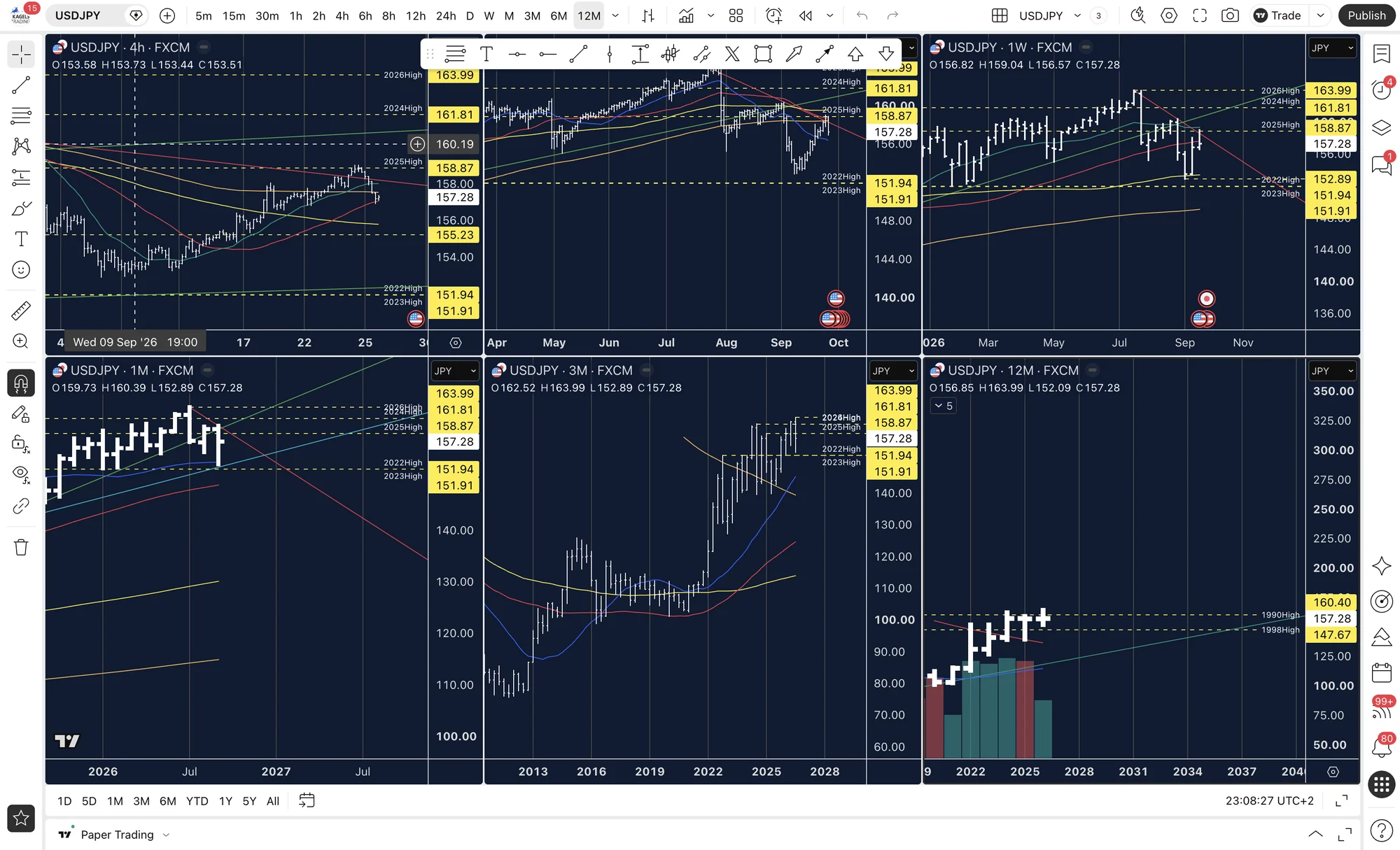 Click to enlarge
Source: Captured with the open-source tradingview-mcp project.
For us, the community MCP is an assistant for preparation work, not a trading system. Claude Code uses it to switch symbols and time frames, read the values in the data window, insert and compile Pine Script and read the error list, step through Bar Replay, and take screenshots. For our guide to TradingView paper trading, Claude opened the account dialogs and captured them through the MCP on September 26, 2026, with Karsten’s approval and without sending an order. The charts in our forecasts are still exported by Karsten himself.
The community MCP has also shown us its rough edges. On October 22, 2026, its quote tool returned the DAX future from the open chart although we had asked for Bitcoin. More serious: a Pine Script test meant for a new, empty script was saved over one of Karsten’s own indicators, because the editor still had that script open and the compile tool saves automatically. TradingView’s version history brought the original back the same evening. Since then we run Pine tests only in a brand-new, unsaved script.
Setup at a high level
The setup is technical, but it follows four steps. First, install Node.js and download the project from GitHub. Second, start TradingView Desktop with the debugging port switched on; the project has start scripts for Mac, Windows and Linux. Third, register the server in your AI client, for example in the MCP configuration of Claude Code. Fourth, ask the assistant to run the health check, which confirms that it can see your chart. You need a valid TradingView subscription, because the tool only reads what your own app shows.
Official vs community MCP compared
Both kinds of server connect an AI to TradingView, but they do it in different places and with different risks. The table shows the differences that matter in practice, from market data to the Terms of Use.
| Official TradingView MCP | Community MCP (tradingview-mcp) | |
|---|---|---|
| Provider | TradingView | Independent open-source developer |
| Runs | In TradingView’s cloud | On your computer, next to TradingView Desktop |
| Sign-in | OAuth with your TradingView account | Uses your open, logged-in desktop app |
| Plan | Essential or higher, no trial | Your own subscription; the project requires a valid one |
| Market data | Documented as delayed | What your app shows, real time if you pay for it |
| Reads your open chart and indicators | No | Yes |
| Pine Script, screenshots, Bar Replay | No | Yes |
| Screener, news, fundamentals, calendars | Yes | Only what is on screen |
| Live order tools | None | None documented; general UI controls not tested against live trading |
| Supported by TradingView | Yes, beta | No; can break after app updates |
| Fits TradingView’s terms | Yes, within its usage rules | Unclear; the project itself warns of a possible conflict |
Risks: terms of use, account safety and data licences
The biggest risk of a community MCP is not technical, it is the Terms of Use. TradingView licenses market data for display only. Section 3 of its Terms of Use forbids automated trading, automated order generation and “machine-driven processes” that do not involve a direct, human-readable display, and it also forbids third-party tools made for that kind of use. The tradingview-mcp project warns in its own disclaimer that its approach may conflict with those terms and that users carry the risk of an account suspension.
We have not established that this community workflow complies with TradingView’s terms. Watching each result does not establish permission. We use the community MCP only on Karsten’s own computer and account, for questions he is watching, and we keep no separate market-data archive and do not sell or share raw prices. Results that reach an AI client, such as chart values and screenshots, are processed and may be retained under that client’s settings. This is not legal advice; if you are unsure, use the official server, which TradingView built for AI assistants.
The debugging port is also a security question. While it is open, any program on your computer that can reach that local port can operate your logged-in TradingView app. Start the app in debugging mode only when you need it, close it afterwards, and install MCP projects only from the original repository, not from copies or renamed packages.
Market data has owners beyond TradingView. Exchanges and data vendors license their prices for personal display. Whatever route you use, do not republish, sell or share raw prices you received through an MCP, and treat screenshots of exchange data with the same care.
What an MCP cannot do for your trading
Neither kind of MCP is built to turn TradingView into a trading robot. The official server exposes no order tools. The community project documents trading only inside Bar Replay; we have not tested or established that its general UI controls cannot operate live trading controls. Videos that promise “AI trading with TradingView” usually add a separate bot service that turns webhook alerts into orders. That is a different product with its own risks, and the official MCP terms forbid feeding its data into such a system.
An AI can also be wrong about what it reads. A chart with several panes and many indicators gives it plenty of room to take the wrong value or describe a level that is not there. In our test of TradingView’s AI Copilot, the built-in assistant made calculation errors too. Check every level and every number against the chart before money depends on it, and practice new ideas in Bar Replay first.
Conclusion: which TradingView connection fits you
For most traders, the official MCP server is the right start. It is supported by TradingView, needs no installation and answers questions about prices, the screener, news and fundamentals in plain English. The documented data delay and the missing chart access are real limits, but they are honest ones.
A community MCP is worth it only if you need the chart itself and accept the risks. It gives an AI eyes and hands on your desktop app, which helps with Pine Script and chart preparation. It is unsupported, can break with any update and sits in a grey area of the Terms of Use. If you need prices in your own program, neither MCP is the answer; use a data provider or a broker API.
Frequently asked questions about TradingView MCP and API
Does TradingView have an API?
Not for private traders who want data. TradingView’s help center says it has no API that gives access to data at the moment. Its REST API is for brokers, and the chart libraries need your own data. The official MCP server is the closest thing to a data connection for paying users.
Is there an official TradingView MCP server?
Yes, since September 16, 2026, as a public beta. It connects AI assistants such as Claude, ChatGPT, Codex and Cursor to your TradingView account. TradingView documents its 35 tools on its MCP documentation page.
Is the TradingView MCP free?
The official MCP server costs nothing extra, but it requires a paid plan. According to TradingView, it is included from Essential upward, and trial plans do not get access. Community MCP servers are free open-source software, but they also need a TradingView subscription to be useful.
Can the TradingView MCP place trades?
The official server cannot, and the community server is not designed to. The official server’s tool list contains no order tools, and its terms forbid using its data for automated trading. The community project documents trading only inside Bar Replay, a practice mode. We have not tested whether its general controls could reach live trading, so keep your broker account disconnected while you use it.
How do I get TradingView data in Python?
TradingView has no public market-data API for downloads into Python. You can export the data of a chart and its indicators manually as a CSV file, as described in TradingView’s export guide, and read that file in Python within TradingView’s terms. Packages that pull data automatically are unofficial and may conflict with the display-only licence in the Terms of Use. For your own code, use a data provider or your broker’s API.
How do I connect Claude to TradingView?
Add the official MCP server as a custom connector in Claude and sign in with your TradingView account. In Claude Code, TradingView’s documentation gives a one-line command instead. If you want Claude to see your open desktop chart, you need a community MCP server, with the limits described above.
Is a community TradingView MCP safe?
A community TradingView MCP is not risk-free, and we cannot confirm that it complies with TradingView’s terms. The debugging port gives local programs control over your app, TradingView updates can break the tool, a compile command can overwrite a saved script, and the project itself warns of a possible conflict with the Terms of Use. Use it on your own computer only, close the port after use and never connect it to automatic orders.
Note: This article explains software and does not give investment advice. Trading involves the risk of losing money.
More TradingView guides
- Choose a plan
TradingView Review 2026: Plans, Pricing and Is It Worth It?
Prices of all plans in US dollars, real-time data costs, Black Friday and whether it is worth it.
- Learn the basics
How to Use TradingView: A Beginner Tutorial in 11 Steps
A beginner tutorial in 11 steps: chart, symbol search, drawings, indicators, log scale, watchlists, alerts, layouts and trading.
- Save on a plan
TradingView Black Friday 2026: Dates, Deals and Best Plan
Expected 2026 timing, verified past deals and what to check before buying a plan.
- Practice without risk
TradingView Paper Trading: Setup, Limits and Tips (2026)
Set up the free paper trading account, place your first orders and learn where the simulation falls short.
- Compare platforms
TradingView Alternatives 2026: 7 Platforms Tested
Seven platforms compared, with a decision aid for when switching makes sense.
- Connect a broker
Best Brokers for TradingView 2026: A Guide for US Traders
Which US brokers work with TradingView and what to check before you connect one.
- Test a strategy
TradingView Backtesting: Test a Strategy Without Real Money
Manual testing with Bar Replay and automatic testing with the strategy report.
- Plan around economic data
Economic Calendar: Key US Dates and the 6 Best Calendars
The key US release dates to the end of 2026, how to read a calendar and six free calendars compared, TradingView first.
- Write an indicator
Pine Script in TradingView: Basics, Editor and Version 6
Pine Script basics, the editor and version 6, with code you can copy.
- Use the AI Copilot
TradingView AI Copilot Review: 7 Tests, Price and Limits
Seven real tasks for the paid AI add-on: what it costs, what it got right and where you must check it.
- Filter stocks with the screener
TradingView Stock Screener: How to Use It and What It Costs
How the stock screener works, what the free plan can do, the Pine Screener and three tested popular screens.
- Read volume inside each bar
TradingView Volume Footprint: Setup, Plans and Limits
Open and set up the volume footprint, which plan includes it and how accurate its buy and sell split is.
- Read the market on a heatmap
Stock Heatmap: How to Read It, TradingView and Finviz
What size, color and grouping mean, the free TradingView heatmap step by step and how it compares with Finviz.