
Best Monitors for Trading: Size, Resolution and Layout


Contents
- Trading monitors in 30 seconds
- Choose your monitor setup
- What makes a good trading monitor?
- Size, resolution and readable text
- One ultrawide or two screens?
- Refresh rate, panel type and OLED
- Connections: computer, cables and docks
- Four monitors worth a look
- Portable screens for laptop traders
- Placement and eye comfort
- Buying checklist
- Conclusion: start with one good screen
- Frequently asked questions
- About the author
A trading monitor is where you read the market, so it has to show enough at once and stay readable after hours. It does not need to be expensive or built for trading. What matters is screen space, sharp text at your viewing distance and a connection your computer can actually drive.
This guide starts with those three questions and ends with four monitors whose specifications and US prices we checked on the manufacturers’ websites on 29 September 2026. We have not tested these four models; the tables come from the manufacturers’ pages. Where we speak from our own desks, we say so. How we research and write is described on our editorial policy page.
Trading monitors in 30 seconds
- No special device class: a trading monitor is a normal monitor chosen for screen space, readable text and the right ports.
- Resolution: 2560 × 1440 on 27 inches is a common sweet spot. A 4K screen gives sharper text, more workspace or a mix of both, depending on the scaling you choose.
- One ultrawide or two screens: an ultrawide has no bezel in the middle; two screens are more flexible and cheaper to extend.
- Ports first: check that your computer can drive the number of screens you plan. A USB-C port only carries a picture if it supports DisplayPort.
- Refresh rate matters less than size and sharpness for reading charts. A faster screen feels smoother; treat it as comfort.
Choose your monitor setup
Start from the setup that sounds closest to how you trade. Each line jumps to the section that explains it; the connections section applies to all of them.
Choose the closest starting point.
- You trade from a laptop on the moveA portable USB-C monitor
- One platform, a few charts, limited desk spaceOne 27-inch monitor
- Wide charts side by side without a bezel in the middleOne 34-inch ultrawide
- Several markets or platforms at onceTwo separate screens
Whatever you choose, check the connections section before you buy.
What makes a good trading monitor?
A good trading monitor gives you enough screen space for your charts and order windows, shows small numbers sharply at your viewing distance, and connects cleanly to your computer. It is not a separate device class; any monitor that meets these three points can serve.
The requirements depend on your trading style, not on the label on the box. A day trader with several charts, a watchlist and an order ticket needs more space than a swing trader who checks a few charts in the evening. The software matters too: some platforms open many small windows, others one large chart.
Bjarne’s advice from his own desk: the fewer windows you have to click through, the calmer you trade. He recommends a larger screen or two screens for day traders with many charts, and one large, sharp monitor for most swing traders. More screens do not improve results by themselves; they only help if you actually use what they show.
Size, resolution and readable text
What you see on a screen depends on two numbers: the resolution and the size. Together they give the pixel density, measured in pixels per inch (PPI). The higher it is, the sharper small numbers look, and the more your system has to scale text up so it stays readable.
| Size and resolution | Pixel density |
|---|---|
| 24 inches, 1920 × 1080 | about 92 PPI |
| 27 inches, 1920 × 1080 | about 82 PPI |
| 27 inches, 2560 × 1440 | about 109 PPI |
| 27 inches, 3840 × 2160 | about 163 PPI |
| 32 inches, 3840 × 2160 | about 138 PPI |
| 34 inches, 3440 × 1440 | about 110 PPI |
| 49 inches, 5120 × 1440 | about 109 PPI |
A practical reading of the table: 1920 × 1080 on 27 inches looks coarse up close, while 2560 × 1440 on 27 inches is sharp at 100 % scaling. That is why 27 inches with 2560 × 1440 is a common choice for trading. A higher resolution can give you sharper text, more workspace or a balance of both, depending on scaling. A Windows example: a 3840 × 2160 screen at 150 % scaling offers roughly the workspace of 2560 × 1440, at 200 % roughly that of 1920 × 1080. The PPI figures and this example are calculated, not measured.
Scaling is set in the operating system. Windows lets you change the text size and the overall scale, and Microsoft recommends the setting marked “(Recommended)” (Microsoft support). On a Mac, the default is “the best resolution for the display”, and Apple notes that a scaled resolution “may affect performance” (Apple support). Apple describes the same trade-off between larger objects and more space. A simple test before you buy: open your usual chart layout and choose the setting at which the small numbers in the watchlist stay easy to read.
One ultrawide or two screens?
The same windows fit on both, but the two setups behave differently. An ultrawide at 3440 × 1440 is one continuous surface with an active screen area about 31 inches wide. Two 27-inch QHD screens together have 5120 × 1440 pixels, about 49 % more horizontal workspace at the same scaling, and a clear border between tasks. Check the real product widths for your desk: Dell lists the S2725QC at about 24.1 inches and the P3425WE at about 32.1 inches wide.
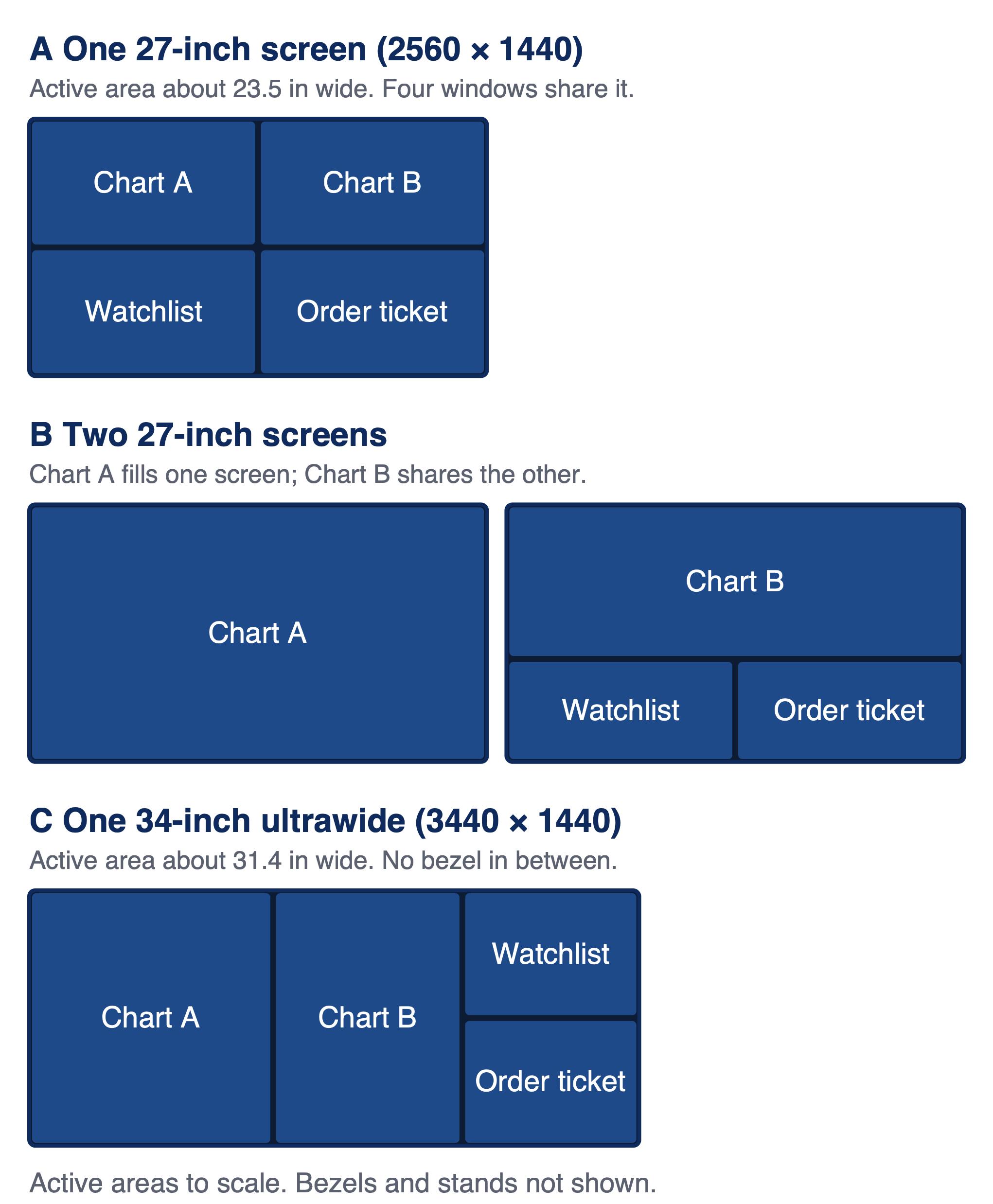 Click to enlarge
Source: Kagels Trading.
- Ultrawide: no bezel through the middle of a chart, one cable, one stand. Window management matters, otherwise the wide surface gets cluttered.
- Two screens: separate spaces for separate tasks. Your computer must support both at the resolution and refresh rate you need, through separate outputs or a compatible dock or daisy chain.
- Curved or flat: a curve helps keep the edges of a wide screen in view; on a 27-inch monitor the benefit is small.
- Vertical screen: turned 90 degrees, a monitor suits long lists such as a watchlist or a news feed. For charts, landscape is almost always the better choice. This needs a stand with a pivot function.
Karsten, who reviewed this guide, uses both ideas at once. His MacBook Pro drives an LG ultrawide and a 27-inch EIZO FlexScan EV2781 with 2560 × 1440. One possible arrangement for this combination is to put charts on the ultrawide and lists on the second screen.
Refresh rate, panel type and OLED
Refresh rate is how often the screen redraws the picture per second, measured in hertz (Hz). 60 Hz is enough to read charts; 100 to 144 Hz makes scrolling and moving charts look smoother. For ordinary chart reading, we would prioritize readable text and enough workspace over gaming-level refresh rates; treat a faster panel as comfort. This is an editorial recommendation, not an execution-latency test. Gaming monitors often offer high refresh rates at a fair price.
- IPS panels keep colors stable when you look from the side, which helps with several screens.
- VA panels show deeper blacks and are common in large curved monitors.
- OLED panels have excellent contrast, but static elements such as watchlists and chart grids sit in the same place for hours. Samsung recommends its Pixel Shift function against this (Samsung support), and Dell’s Alienware warranty for QD-OLED monitors includes burn-in. Pixel care reduces the risk but does not rule out burn-in, and the Dell coverage applies to those Alienware models only. Check the burn-in terms of the exact model before buying an OLED for trading.
Connections: computer, cables and docks
The monitor is only half the setup: your computer must be able to drive it. Check how many external screens your laptop or computer supports and through which ports. Our guide to trading laptops lists these numbers for the models it covers, and the guide to trading computers does the same for two mini PCs.
A USB-C port does not automatically carry a picture. VESA, the organization behind DisplayPort, explains that a USB-C port without DisplayPort support means “there will be no image on the screen” (DisplayPort FAQ). Look for DisplayPort Alt Mode, Thunderbolt or USB4 on the computer side. A monitor with USB-C power delivery can charge a laptop over the same cable; check that its wattage is enough for your laptop.
- Daisy chaining connects several monitors in a row from one DisplayPort output. For DisplayPort MST, the computer must support MST and enough bandwidth, and every monitor before the last needs an MST-capable DisplayPort output (DisplayPort.org). A version number such as DisplayPort 1.2 alone does not guarantee it.
- On a Mac, Dell documents DisplayPort MST chains as mirroring only, not an extended desktop (Dell guide). For separate desktops through a chain, use a supported Thunderbolt setup and check your exact Mac’s display limits. Apple adds that a hub or a daisy chain “does not increase the maximum number of displays” your Mac supports (Apple support).
- Docking stations connect monitors, network and power through one cable. Check which video outputs the dock actually drives with your computer.
- VESA mounting lets you put a monitor on an arm or a wall mount. The three desktop models below list 100 × 100 mm VESA mounting; for the portable ARZOPA A1 it is not stated. Check the mounting pattern and the arm’s size and weight limits.
Four monitors worth a look
These four monitors cover the setups above: a sharp 27-inch screen, an office ultrawide, a very wide gaming monitor and a portable screen. Prices are the ones shown on the manufacturers’ US websites on 29 September 2026. They are listed prices; sales tax, shipping, cables and monitor arms can add to the total. Prices change often, so check the current price before you buy.
Dell 27 Plus 4K (S2725QC): sharp 27-inch screen with USB-C
A 27-inch 4K monitor with USB-C that can charge a laptop, at a moderate price. Text looks very sharp at typical scaling, and the stand offers pivot for a vertical setup. It has no DisplayPort input and cannot daisy chain.
| Dell S2725QC | Checked |
|---|---|
| Panel | 27 inches, IPS, 3840 × 2160, up to 120 Hz |
| Inputs | USB-C (DisplayPort Alt Mode, 65 W charging), 2 × HDMI 2.1 |
| Daisy chain | No |
| Stand | Height, tilt, swivel, pivot; VESA 100 × 100 |
| US price | $329.99 (dell.com, 29 September 2026) |
| Source | dell.com |
Dell Pro 34 Plus (P3425WE): ultrawide for the office desk
A 34-inch ultrawide with a gentle curve, built as a hub for a laptop. One USB-C cable can carry the picture, data and up to 90 W of charging power, and the monitor adds an Ethernet port. The stand has no pivot, which is normal for an ultrawide.
| Dell P3425WE | Checked |
|---|---|
| Panel | 34 inches, IPS, 3440 × 1440, 100 Hz, 3800R curve |
| Inputs | USB-C (DisplayPort Alt Mode, 90 W charging), DisplayPort 1.4, HDMI 2.1 |
| Extras | Ethernet port, KVM switch |
| Stand | Height, tilt, swivel; VESA 100 × 100 |
| US price | $699.99 (dell.com, 29 September 2026) |
| Source | dell.com |
Samsung Odyssey G9 (G95C): two screens in one
A 49-inch super ultrawide at 5120 × 1440, about the width of two 27-inch screens without a bezel in between. It comes from gaming, with 240 Hz and a strong 1000R curve. Plan for a deep desk and check your computer’s graphics output: driving 5120 × 1440 at high refresh rates is more demanding than an office screen.
| Samsung LS49CG954ENXZA | Checked |
|---|---|
| Panel | 49 inches, VA, 5120 × 1440, 240 Hz, 1000R curve |
| Inputs | DisplayPort 1.4, 2 × HDMI 2.1 |
| Stand | Height, tilt, swivel; VESA 100 × 100 |
| US price | $1,299.99 (samsung.com, 29 September 2026) |
| Source | samsung.com |
ARZOPA A1: portable screen for the laptop bag
A 15.6-inch portable monitor that adds a second screen wherever you open your laptop. It weighs 1.64 lb and connects over USB-C or mini HDMI. One USB-C cable carries picture and power only if your laptop’s port supports DisplayPort Alt Mode and supplies enough power.
| ARZOPA A1 | Checked |
|---|---|
| Panel | 15.6 inches, IPS, 1920 × 1080, 60 Hz, 250 nits |
| Inputs | 2 × USB-C, mini HDMI; HDMI use also needs USB power |
| Weight | 1.64 lb |
| US price | $149.99 list price, $79.99 on sale (arzopa.com, 29 September 2026) |
| Source | arzopa.com |
Portable screens for laptop traders
A portable monitor is a second screen for the road, not a replacement for a desk monitor. The 15.6-inch, 250-nit A1 above suits a watchlist or a second chart next to the laptop. For long sessions at a desk, a full-size monitor is more comfortable. Check before you buy whether your laptop’s USB-C port supports video; our laptop guide explains what to look for.
Placement and eye comfort
Where the monitor stands matters as much as which one you buy. As a guide for individual comfort, OSHA recommends a viewing distance of 20 to 40 inches and a screen whose top line is at or slightly below eye level (OSHA). A stand with height adjustment or a monitor arm makes this easy.
Blue light filters are often sold as eye protection, but the evidence for that is weak. The American Academy of Ophthalmology says there is “no scientific evidence that blue light from digital devices causes damage to your eye”; studies it cites suggest that blue light glasses do not improve digital eye-strain symptoms (AAO). As practical advice, it recommends regular breaks with the 20-20-20 rule: every 20 minutes, look at something 20 feet away for 20 seconds (AAO). A night mode can still be more pleasant in the evening.
Buying checklist
- Space: how many charts and windows do you really keep open?
- Size and resolution: 27 inches with 2560 × 1440 or 4K, or an ultrawide at 3440 × 1440.
- Readability: can you read small numbers at your viewing distance with normal scaling?
- Computer: how many external screens does it support, and through which ports?
- USB-C: does the port carry video (DisplayPort Alt Mode, Thunderbolt or USB4)?
- Daisy chain: do you need it, and do your computer and monitors support it? On a Mac, DisplayPort MST only mirrors.
- Stand: height adjustment, and pivot if you want a vertical screen; VESA for an arm.
- Desk: is the desk wide and deep enough, especially for 49 inches?
- OLED: check the burn-in terms if you consider one.
- Returns: check the return window, because comfort only shows at your own desk.
Conclusion: start with one good screen
Most traders are well served by one sharp 27-inch monitor and can add a second screen once they know they need it. An ultrawide suits you if you want wide charts without a bezel; two screens suit you if you watch several markets or platforms. Whatever you choose, check the connections of your computer first.
A monitor shows the market, it does not trade it. More screens only help if you use what they show. Start with the setup your trading style needs today, and extend it when a real bottleneck appears. How screens, computer, power and internet fit together is the subject of our guide to plan your complete trading setup.
Frequently asked questions
How many monitors do I need for trading?
One or two monitors are enough for most traders. Swing traders and investors usually work well with one large screen. Day traders who watch several markets often use two or more. Start small and add a screen when you notice that you constantly switch windows.
What resolution is best for a trading monitor?
On 27 inches, 2560 × 1440 is a good balance of sharp text and working space. 1920 × 1080 suits 24 inches. 4K on 27 or 32 inches gives sharper text, more space or both, depending on the scaling you choose.
Is a gaming monitor good for trading?
Yes, gaming monitors often combine high refresh rates with fair prices. Their speed makes scrolling smoother, but it does not improve trading results. Check resolution, stand and ports as you would for any other monitor.
Do I need a 4K monitor for trading?
No, 4K is not required for trading. It makes text sharper, especially on 27 or 32 inches. How much extra room for windows it gives depends on scaling; a second 27-inch QHD screen adds workspace without any scaling question, and an ultrawide adds width without a bezel.
Is a curved monitor better for trading?
A curve helps on wide screens from about 34 inches, because the edges stay in view. On a 27-inch monitor the benefit is small. Check reflections from your lamps and windows with the actual screen at your desk, and plan the lighting accordingly.
Are OLED monitors good for trading?
OLED monitors offer excellent contrast, but trading screens show static elements for hours. Watchlists and chart grids can increase the burn-in risk. If you choose OLED, use the pixel shift and panel care functions and check whether the warranty covers burn-in.
This US edition is based on our German edition on kagels-trading.de and has been adapted for US readers.
More Trading Equipment guides
- Plan your trading setup
Trading Equipment: What You Need for Your Trading Setup
Which equipment you need and how it fits together: three example setups, power and internet, accessories and a checklist.
- Choose a laptop
Best Laptops for Trading: What You Really Need
Software first, then screens: how to choose a trading laptop, with four checked models.
- Choose a computer
Trading Computers: Desktop PCs and Mini PCs Compared
Processor, memory, storage and screen outputs, Windows or Mac, and two checked mini PCs side by side.
- Optional: trade-management keys
Magic Keys Trading Keyboard Review: Price, V3 and On-Screen
What the Magic Keys keyboard and on-screen tool do, what they cost, what users report, and free alternatives.