
Trading Equipment: What You Need for Your Trading Setup


Contents
- Trading equipment in 30 seconds
- Start with your software and the way you trade
- Choose a setup that fits you
- Choose a laptop or a desktop
- Plan your screens and desk space
- Keep power and internet in the plan
- Which accessories are worth adding?
- A checklist before you buy
- Frequently asked questions
- About the author
Trading equipment is the hardware you trade with: a computer, one or more screens, a stable internet connection and a few accessories. In this guide, “setup” means your workspace, not a chart pattern or a trade setup. It explains which pieces you actually need, how they fit together and in which order to decide.
You do not need a wall of monitors to trade well. Many traders start with the computer they already own and add equipment only when something gets in their way. This guide shows three example setups, explains what each piece does and links to our detailed guides for laptops, computers and monitors. We have not tested the configurations shown here; prices and model comparisons stay in those guides, where they carry a date. How we research and write is described on our editorial policy page.
Trading equipment in 30 seconds
- Software first: your trading platform decides the operating system and much of the hardware. Some platforms, such as NinjaTrader Desktop, run only on Windows.
- Use what you have: a current computer that runs your platform is often enough to start. Upgrade when you hit a real limit.
- Readable screen space: what matters is that charts, watchlist and order window stay readable. One good screen can be enough.
- Power and internet: a wired connection, a backup route and possibly a UPS belong in the plan, but none of them guarantees an order.
- Specialist controls are optional: keypads and trade-management keyboards can save clicks; they are not basic equipment.
Start with your software and the way you trade
Your platform comes before any hardware decision. TradingView, the Interactive Brokers Trader Workstation and cTrader have native apps for Windows and Mac. NinjaTrader Desktop, TradeStation Desktop and MultiCharts are Windows applications. If one of your tools runs only on Windows, that settles the operating system; our laptop guide has the full table.
Next, ask where you trade. If you trade at home and nowhere else, a desktop or mini PC gives you more for the money. If you trade from different places, a laptop is the natural center, and a portable screen can follow later.
Count the windows you really keep open. A swing trader who checks a few charts in the evening needs far less screen space than a day trader with several charts, a watchlist and an order ticket. Write the list down before you buy screens; it tells you more than any recommendation.
Heavy local computation changes the numbers, manual charting rarely does. Charting in a browser and placing a few orders is light work for a current computer. Order flow tools, many native platforms at once and backtests that run on your own machine need more memory and processing power. Keep the vendor’s official minimum requirements apart from comfortable recommendations; our computer guide explains the difference.
Choose a setup that fits you
Pick the description that sounds most like you. Each line jumps to one of the three example setups below; the drawing after the decision guide shows all three side by side.
Where and how often do you trade?
- You are starting out or trade part timeAn existing computer and one readable screen
- You trade at the same desk most daysDesktop, mini PC or docked laptop with your screens
- You trade from different placesLaptop, plus a portable screen or tablet if needed
The setups are illustrations, not tested systems. Start with your software in every case.
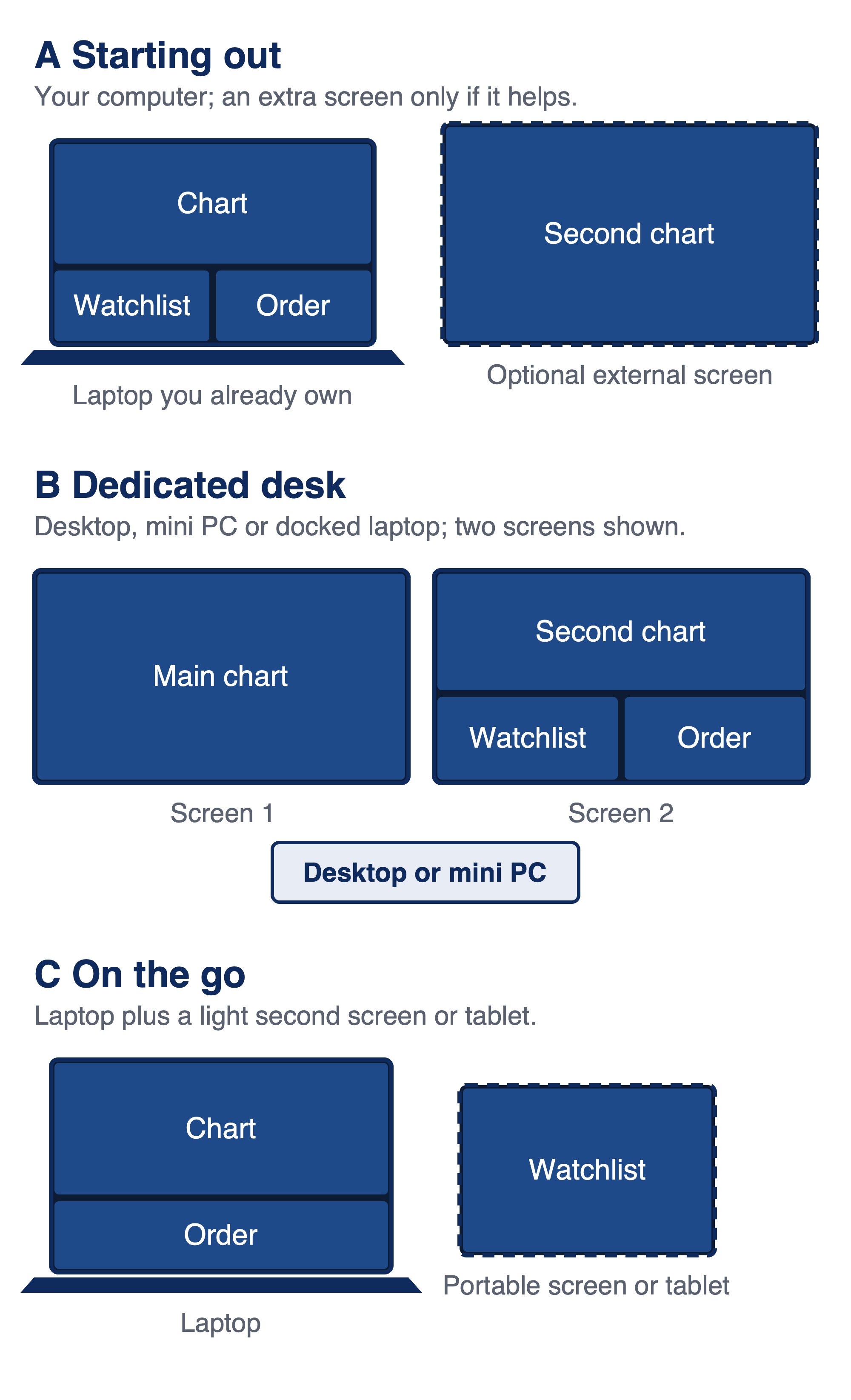 Click to enlarge
Source: Kagels Trading.
Starting out
The cheapest good setup is often the one already on your desk. It fits beginners, part-time traders and anyone who mostly trades in a browser.
- Core: a current computer that runs your platform, a display on which small numbers stay readable, and a reliable connection.
- Optional: one external monitor, if the laptop screen is really too small for your chart and order window together.
- Check before spending: does your platform run on your system; does your computer support an external screen through its ports; is the internet connection stable at your trading times?
- Limits: a single small screen means switching windows, and an older computer can slow down with many tabs and platforms.
- First useful upgrade: usually one good external monitor. Our monitor guide explains which size and resolution keep text sharp.
A dedicated trading desk
A fixed desk is where more screen space pays off, as long as you use it. It fits traders who sit at the same workplace most days and want charts, lists and orders visible without switching windows.
- Core: a desktop or mini PC, or a laptop connected through a dock, plus the screens your task list needs.
- Optional: monitor arms, a wired network connection and a UPS.
- Screens: two screens are one example, not a requirement. One ultrawide or one large, sharp monitor can hold the same windows; the monitor guide compares both.
- Limits: every extra screen needs a supported output, desk depth and your attention.
- First useful upgrade: often a stable mount or better placement rather than another monitor.
My own desk is a laptop version of this setup, with three screens. My MacBook Pro drives an LG ultrawide and a 27-inch EIZO monitor. The charts usually run on the EIZO and on the laptop’s own screen, while the ultrawide shows everything else, such as a news channel or YouTube. It is one way to arrange things, not a configuration you need to copy.
Trading while traveling
On the road, connection reliability can become a particular constraint. This setup fits traders who move between home, office and hotel and want to keep an eye on open positions.
- Core: a laptop that runs your platform, its charger, and a second route to the internet, such as your phone’s hotspot.
- Optional: a light portable monitor, or on a Mac an iPad as a second display through Sidecar.
- Limits: small screens make chart analysis harder, and the reliability and security of public Wi-Fi vary. Turn on two-factor authentication for your accounts.
- First useful upgrade: a portable screen, if your laptop’s USB-C port carries video.
Bjarne Claussen, who wrote our computer and monitor guides, trades this way himself. He uses a MacBook Pro, extends it with an iPad via Sidecar and adds a light portable monitor when he travels.
A compact packing list: laptop and charger, the cable or adapter for your portable screen, a power bank or travel adapter where needed, and your hotspot or mobile router. Check that you can log in to your broker from the device you are taking.
Choose a laptop or a desktop
The question is simple: does the computer ever leave your desk? If it does, choose a laptop and check how many external screens it officially supports. If it never does, a desktop or mini PC often gives you more ports and more power for the money, depending on the model.
Both guides go into the details. The laptop guide compares four models with exact US configurations; the computer guide covers desktops, mini PCs and when a normal PC is enough. A laptop with a dock can also serve both roles: portable during the day, connected to your screens at home.
Plan your screens and desk space
Decide what goes where before you decide how many screens you buy. A common arrangement puts charts on the main screen and the watchlist, news and order ticket on a second one or at the side. Keep the window you use to place orders in the same spot every day.
Readability and desk depth come before screen count. A screen that you have to lean towards is too far away or too coarse. OSHA recommends a viewing distance of 20 to 40 inches and a screen whose top line is at or slightly below eye level (OSHA); measure your desk depth before choosing a large or ultrawide monitor. Size, resolution and layouts are compared in the monitor guide.
Mounts and docks make a setup tidier, but compatibility depends on the model. A monitor arm needs a matching VESA pattern and must carry the screen’s weight. A dock connects monitors, network and power through one cable, but check which video outputs it actually drives with your computer (details).
Keep power and internet in the plan
An uninterruptible power supply (UPS) bridges a short power cut with a battery. A correctly sized UPS can keep connected equipment running briefly. Include the computer, the display you need and your router or modem in the load, and check the manufacturer’s runtime for that load.
For the internet connection, stability matters more than top speed. A wired LAN connection is usually more reliable than Wi-Fi. A second route, for example a mobile router or your phone’s hotspot, gives you another way in when the main line fails; test it before you need it.
No equipment guarantees that you can reach your broker during an outage. A UPS or a backup connection cannot promise connectivity, order submission or execution, and it cannot limit a loss. Know in advance how you would manage an open position without your usual workspace, for example through the broker’s app on your phone.
Which accessories are worth adding?
Add an accessory when it solves a problem you actually have. The table lists the common extras, what they help with and when you can skip them.
| Item | Solves | Skip if |
|---|---|---|
| Monitor arm | Height and angle | Stand already fits |
| Dock | One cable, many devices | Ports already suffice |
| Keyboard, mouse | Comfortable input | Current ones suit you |
| Keypad | Repeated clicks | Few actions |
| Magic Keys | MT4, MT5, cTrader actions | Other platforms |
Dedicated trade controls are a specialist option, not basic equipment. According to the vendor, Magic Keys works with MT4, MT5 and cTrader only, and we have not tested it; its review explains the platform limits and free alternatives. A general programmable keypad can map shortcuts in many programs, but check that your platform offers the shortcuts you want to map.
A checklist before you buy
- Software and system: does every platform you use run on the computer and operating system you are choosing?
- Displays: how many independent external screens does the computer officially support, and through which ports?
- Resolution and refresh rate: do your screens get the resolution and refresh rate you want through the chosen ports, cables and dock?
- Desk and mounts: does the desk have the width and depth, and do the arms match the screens’ VESA pattern and weight?
- Cables and power: are all cables, adapters and power supplies included, and is there a free socket or UPS outlet for each device?
- Warranty and returns: how long can you return the device, and who pays return shipping?
- What is in the box: compare the exact configuration and everything included, not only the headline price.
Fix the limit you have observed, not every component at once. If text is hard to read, look at the screen; if the platform stutters, look at memory and the computer; if orders behave unexpectedly, check the platform status, the order status and your connection before blaming the hardware.
Frequently asked questions
Can I start trading with just a laptop?
Yes, if the laptop runs your platform and its screen keeps your charts readable. Many traders begin with a laptop alone and add one external monitor later. Check first which operating system your software needs.
How many screens do I need for trading?
As many as your open windows need, and often that is one or two. One large, sharp monitor suits many swing traders; day traders with several charts often prefer more screen space. More screens do not improve results by themselves.
Do I need a gaming PC for trading?
Usually not, because chart reading needs little graphics power. A gaming PC can work well, but ordinary browser charting runs on integrated graphics. Check your platform’s requirements and your planned monitors before paying for a strong graphics card.
Is special trading hardware necessary?
No, standard computers and monitors do the job. There is no separate device class for trading. Specialist items such as trade-management keyboards or ready-made trading computers are optional; hardware does not replace a strategy or guarantee better results.
What should I upgrade first?
Upgrade the part that limits you today. For many traders that is screen space, so one good external monitor comes first. If the platform itself is slow, look at memory or the computer; if the connection drops, fix the internet before anything else.
A German edition of this article is available on kagels-trading.de.
More Trading Equipment guides
- Choose a laptop
Best Laptops for Trading: What You Really Need
Software first, then screens: how to choose a trading laptop, with four checked models.
- Choose a computer
Trading Computers: Desktop PCs and Mini PCs Compared
Processor, memory, storage and screen outputs, Windows or Mac, and two checked mini PCs side by side.
- Choose monitors
Best Monitors for Trading: Size, Resolution and Layout
Size, resolution and scaling, one ultrawide or two screens, the right ports, and four checked monitors.
- Optional: trade-management keys
Magic Keys Trading Keyboard Review: Price, V3 and On-Screen
What the Magic Keys keyboard and on-screen tool do, what they cost, what users report, and free alternatives.